
Introduction
Large Language Models (LLMs) are a common interactive AI that empower easy human interface with powerful AI tools. Many LLMs are hosted in large cloud servers by service providers and sold on a per-use basis or as a subscription. However, with a powerful enough computer, it is possible and advantageous to host LLMs locally. LM Studio is one platform that provides a desktop interface for interacting with the LLM, an interface to download and manage LLMs, and a configuration to connect an MCP Server. LM Studio also hosts a server that can be contacted from external applications, making it also suitable to host LLMs for Intelligence Hub's AI Agents.
This article will focus first on connecting to Intelligence Hub's MCP server from LM Studio, and then on connecting to LM Studio's server from Intelligence Hub to run Intelligence Hub's AI Agents.
This article focuses on LM Studio. Other AI solutions are available for connecting to MCP or hosting agent LLMs and may have their own mechanisms or nuances, but many use similar connection styles. The patterns depicted in this article have a good chance of applying to other LLM applications as well
LM Studio is one option for locally hosted LLMs. Other LLM hosting solutions are available. LM Studio is neither affiliated with nor specifically endorsed by HighByte.
Configure Intelligence Hub's MCP Server
Enable MCP Server
Enable Intelligence Hub's MCP Server in Settings > MCP Server > Enabled & Configuration Tools, and finally ensure to Save at the top of the settings screen.
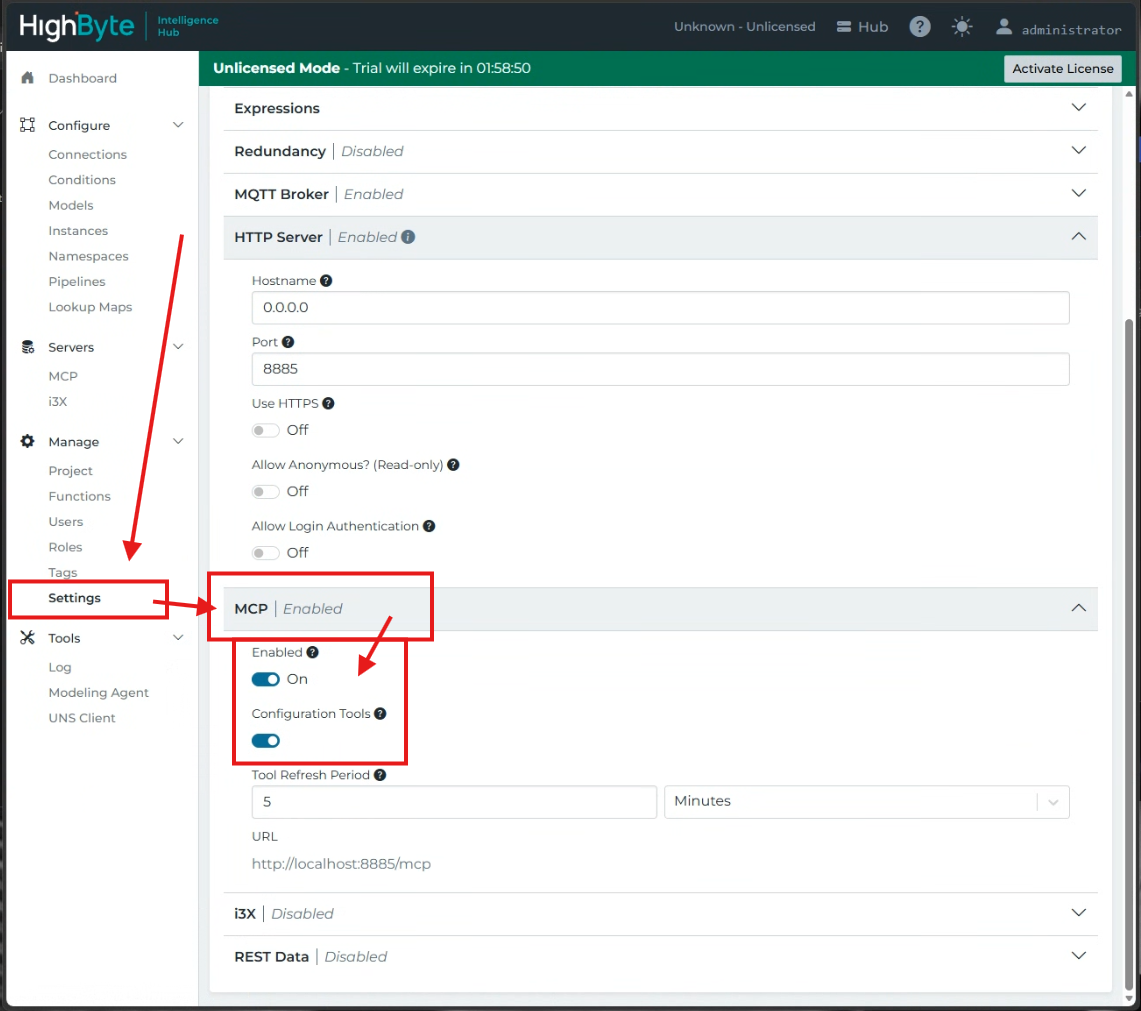
The simple "Enable" option will expose API pipelines and some informational tools to the MCP server. The "Configuration Tools" option will allow and agent to create pipelines, connections, and other entities. The MCP server does not allow an agent to delete entities, but it can modify existing ones as long as the agent has permission from the API key supplied (next step).
Generate an API Key
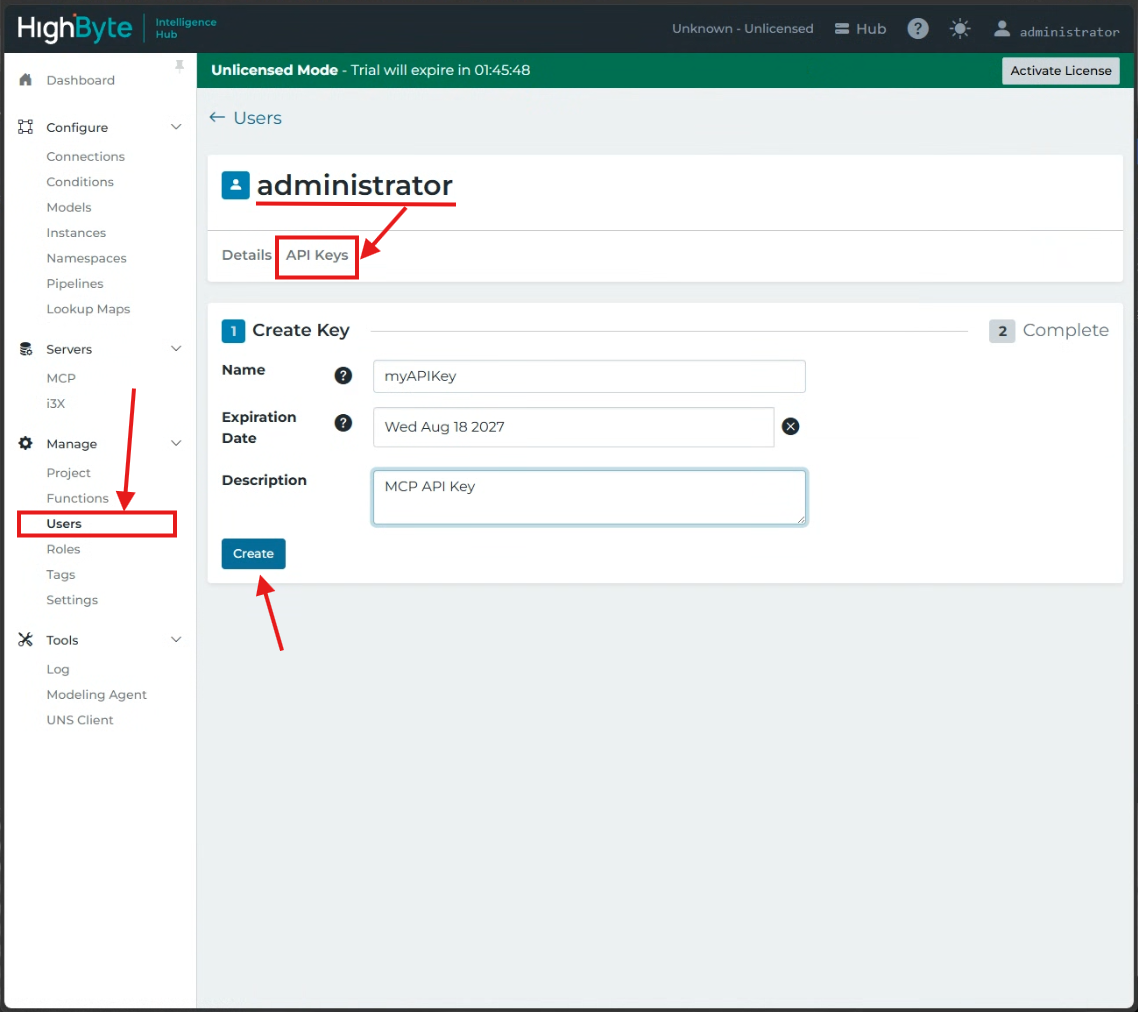
Users can be created with claims and roles allowing them permission to create or access resources. A user with an appropriate role should be created that allows an AI through MCP to access appropriate resources. For the sake of simplicity, this article will demonstrate with the "administrator" user. This works well for testing, evaluation, and demonstration, but it unlikely ideal for production.
Select Users > [your user name] > API Keys > New API Key, and then fill in a key name a description. The agent accessing Intelligence Hub with this key will have all the permissions of this user. Select Create and copy the API key to a safe location - it won't be visible again.
Configure LM Studio
AI is a rapidly developing topic. It is possible that changes to products occur without warning and these changes may affect the necessary steps for these integrations. In the event of drastic change, additional investigation may be necessary to locate configuration options. These instructions are subject to change.
Install LM Studio
LM Studio may be installed from LM Studio's Download Page. At the time of writing, LM Studio also hosts and promotes and application "Bionic" that is intended to run its own AI Agents. This is not the goal of this guide, and this article will use the classic LM Studio. Download and Install LM Studio. Default installation options are fine.
Install a Model on LM Studio
Different Models have different strengths and different hardware requirements. These requirements will change rapidly, but the following resources provide some immediate guidance and should help build some awareness of the factors to consider when choosing a model:
In HighByte Intelligence Hub, LLMs connecting to Intelligence Hub for simple tools may be lighter weight while those connecting for configuration may need to be larger and heavier. LLMs running agents for Intelligence Hub will also need to be large - more parameters and able to hold more context - 10s of thousands of tokens. This article will be using a GPU with 24 GB of VRAM, so the model selected will be Qwen3.8:27b. For simple non-configuration MCP tools, an older, smaller model like Qwen3:8b would suffice.
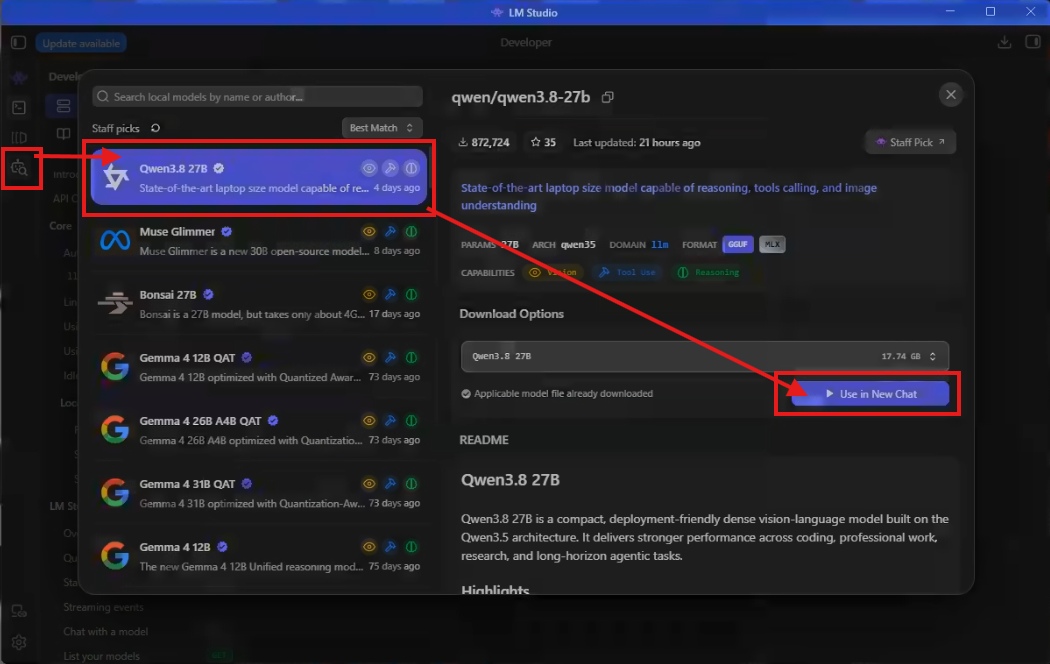
In LM Studio, navigate to Model Seach > [select your model] > Download. In this image, the download button will appear where "Use in New Chat" is currently shown.
Configure the MCP Connection in LM Studio
With a model loaded, the MCP configuration must be set in LM Studio to connect back to Intelligence Hub. The MCP server settings in LM Studio are configured as a JSON and are accessible from Developer > Local Server > mcp.json.
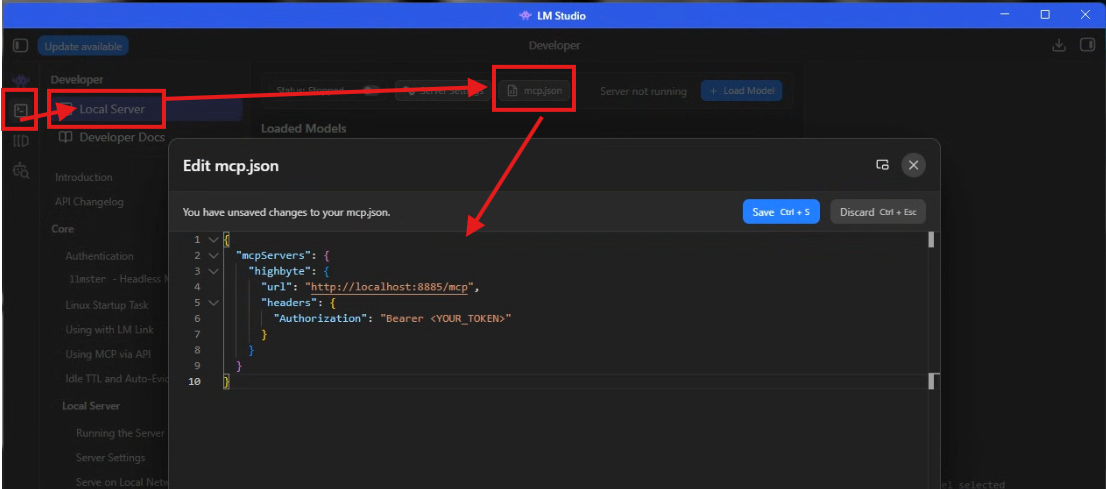
Using the URL from the MCP Server settings in Intelligence Hub above, enter the following into the mcp.json body:
{
  "mcpServers": {
    "highbyte": {
      "url": "http://localhost:8885/mcp",
      "headers": {
        "Authorization": "Bearer

  "

      }

    }

  }

}
Replace "
To confirm connectivity, navigate to Chat > Create a Chat and then in the right-side details pane, select Integrations > Enable mcp/highbyte > and see the available tools. After loading a model in the chat text box, these tools may be invoked by the LLM to help answer questions. A simple example is demonstrated.
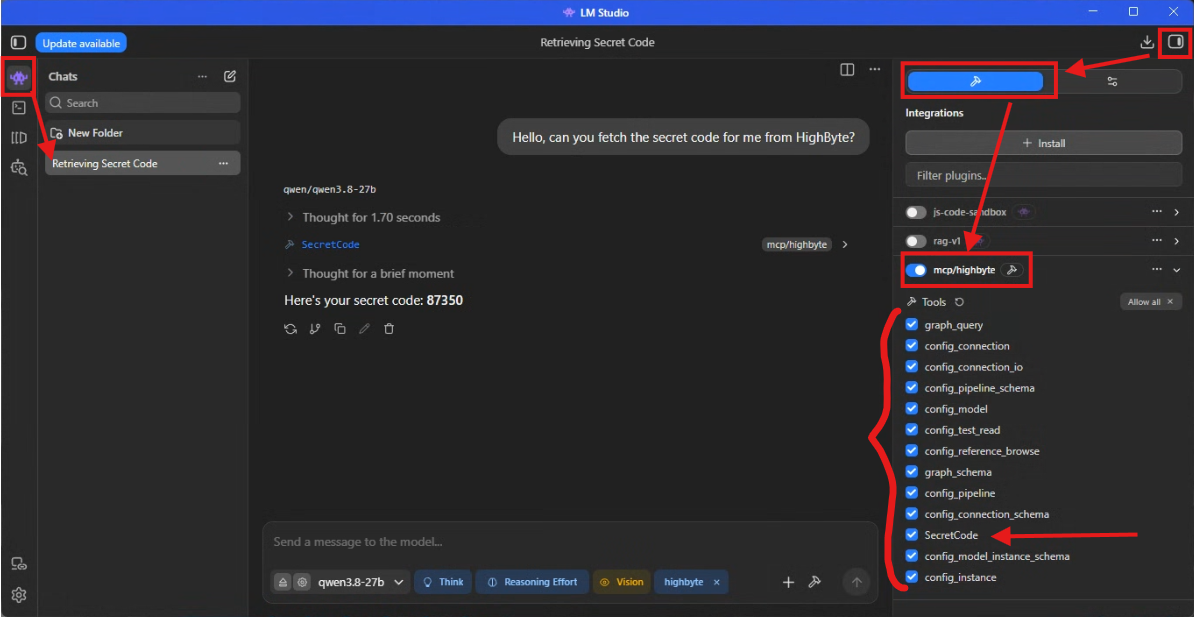
LM Studio may now be used to interact with tools built in Intelligence Hub and to configure via MCP, or to act in concert with additional tools.
Enable Server and External Connections
In addition to hosting an LLM Interface, LM Studio is also able to host a server for external applications to connect and use its hosted LLMs. HighByte Intelligence Hub can leverage LM Studio and Qwen in its Pipeline and Modeling Agents. This requires an LLM server and an AI Connection
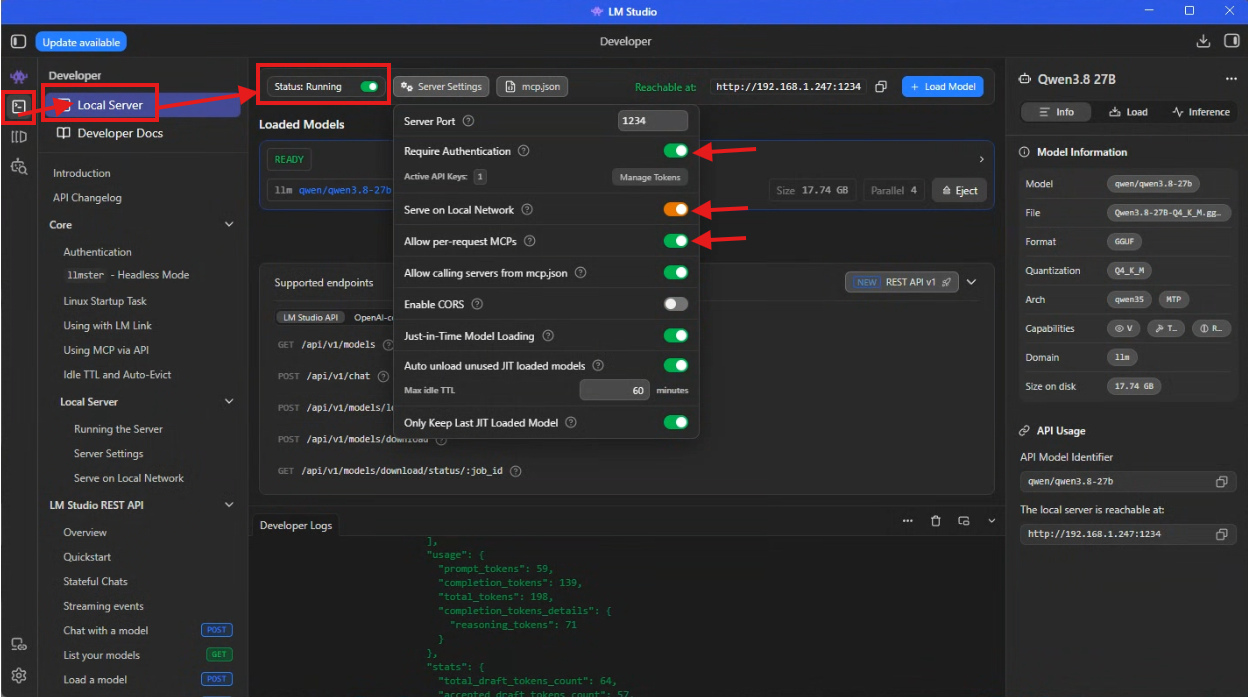
Enable the external-facing LLM server by navigating to Developer > Local Server > and toggle Status. The server settings may also be modified to allow hosting on the network (if Intelligence Hub and LM Studio are on different hosts). Settings are also available to require authentication and to allow those clients connecting to also use MCP tools. These are also optional. Create an API key if authentication is desired by enabling Require Authentication and Manage Tokens. Create an API key, copy it, and store it somewhere safe.
Limitations of LM Studio
LM Studio is intended to be used by a single or a few users. It will not process requests in parallel, and local installations on simple or consumer-grade hardware will not be sufficient to quickly process an enterprise of requests. This makes it ideal for single users or single use cases, but for an enterprise solution, a more robust architecture will be necessary.
Connect to LM Studio from Intelligence Hub
Create an AI Connection using the OpenAI Connector
The OpenAI Connector is not solely for connecting to OpenAI. In fact, "OpenAI-compatible" is a standard for many LLM software including LM Studio.
Create a New Connection in HighByte Intelligence Hub with your preferred name ("LMStudio" perhaps) and select OpenAI as the protocol. If authentication was not required from the LM Studio server, the password may be left empty. If Authentication is required, the API key generated in LM Studio may be used as the password. The "Base URL" will be the "Reachable At" URL shown in Local Server settings in LM Studio followed with a "/v1" endpoint.
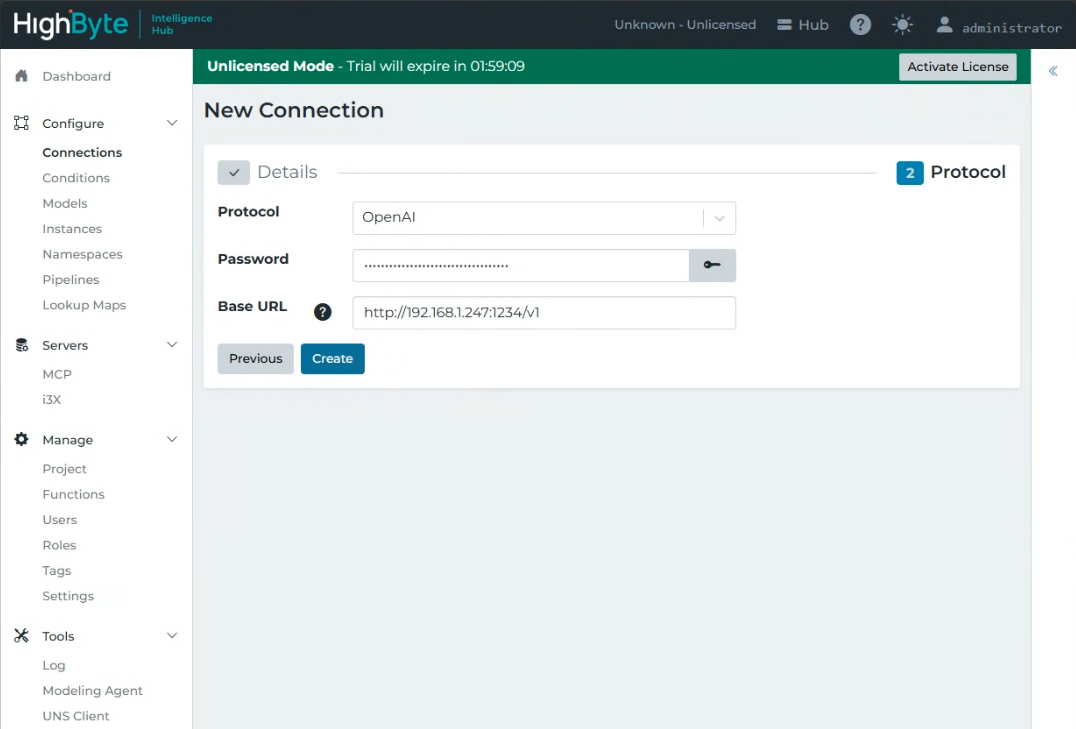
With a connection made, the input becomes the configuration linked to an AI Agent from Intelligence Hub. It is necessary to then create an input. The input will define the model to use, which will be the model downloaded in LM Studio prior. This may be the same model as used in the MCP server connection, or a different one. The format of the model identifier can be observed the LM Studio at the start of a new chat or on the model browser - "qwen/qwen3.8-27b" in this example case.
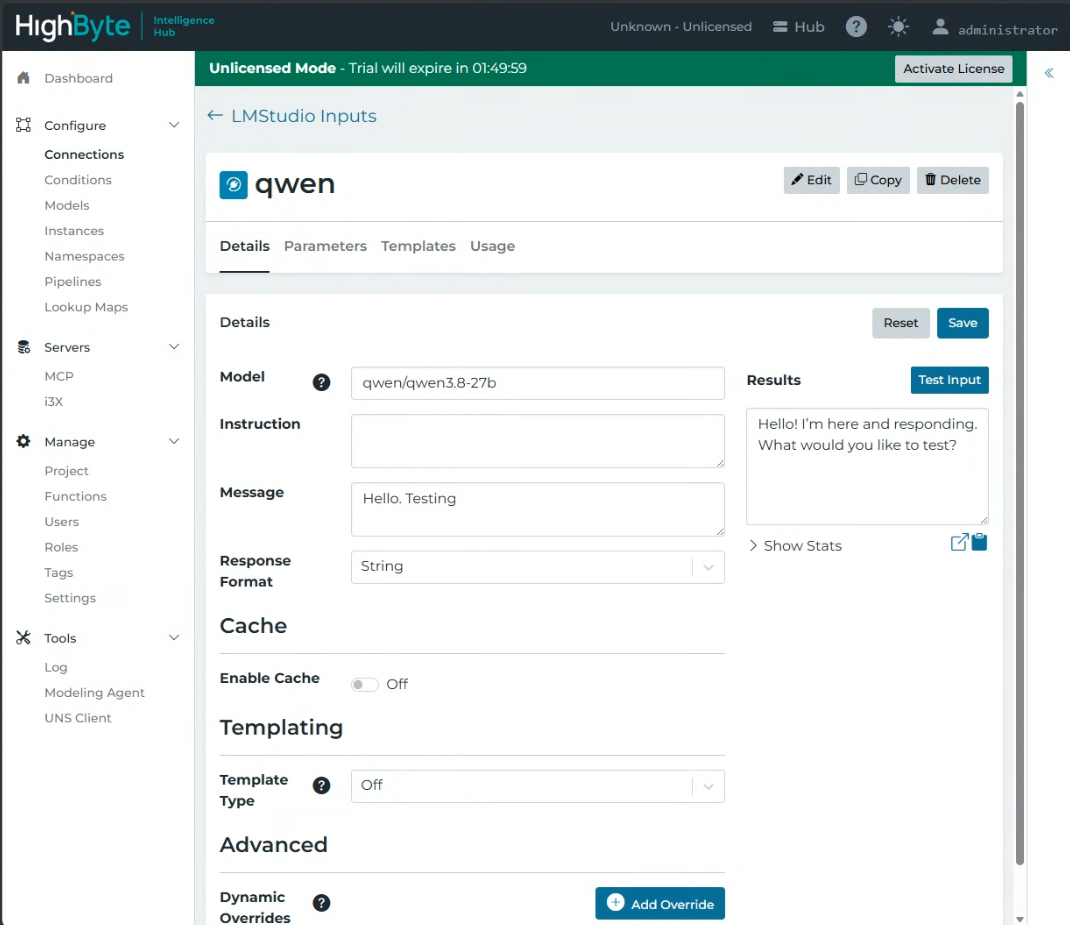
LM Studio Connections do not support messages in the "Instruction"
This connection input may now be used as an AI agent in any of the "Agent" interfaces in intelligence Hub to make pipelines or to configure models!
Related Materials
LM Studio Documents (External)
Connect Claude Desktop to the HighByte intelligence Hub MCP Server (Knowledge Base)
Establish a Pipeline Agent Using Amazon Bedrock (Knowledge Base)