
Introduction
What is the Pipeline Agent
The HighByte AI Pipeline Agent was introduced in HighByte Intelligence Hub version 4.4 to help accelerate pipeline orientation, construction, and debugging. Unlike some other tools, HighByte does not package an entire Large Language Model (LLM) in Intelligence Hub, rather, users can connect to one of many LLMs with the AI Connectors to pick their preferred model. HighByte then provides the agent context and tools to use for the specific case. It is worth noting that some connectors - e.g. the OpenAI connector - can be used to connect to more than just the specified service and can also connect to other services that use an API key and endpoint like Claude or a local Ollama.
LLMs can be considered general-purpose multi-tools. When an AI agent (agentic AI) is configured, it is given special instructions or descriptions on its environment to help with a specific task. For instance, an agent for the HighByte pipeline agent may have an embedded instruction "you assist data engineers with data operations in pipelines inside HighByte Intelligence Hub. You may assist in building pipelines, debugging, and coding." The LLM will also be given special tools and interfaces - e.g., to read, modify, and write pipelines. These take a general LLM and turn it into a purpose-defined "Agent." Not every LLM is capable of using tools, and it is the user's responsibility to select a capable LLM. Some common tool-capable LLMs are Claude, GPT, Qwen, and Llama.
Amazon Bedrock
Amazon Bedrock is a compute platform optimized for running and serving LLMs. It allows users to access LLMs that accept and provide large queries and answers, and can host many different LLMs on AWS. This makes it a flexible and accessible platform for using LLMs for many users.
Setting Up Access t0 Amazon Bedrock
Creating a Bedrock User
Amazon Bedrock runs "serverless," so it isn't necessary to provision a resource. Instead, users can be generated to access Bedrock services.
- Log into AWS and navigate to IAM to create a new user
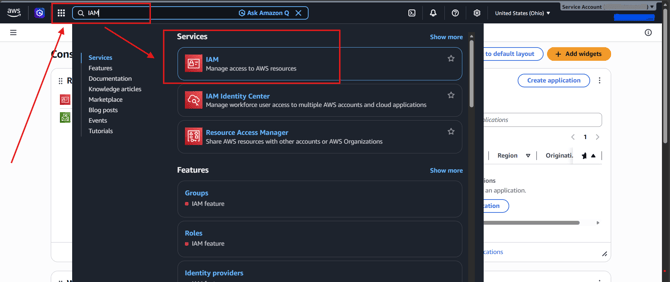
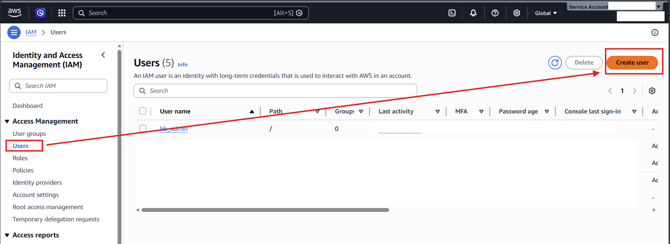
- Select "Users" on the left-side menu and "Create User"
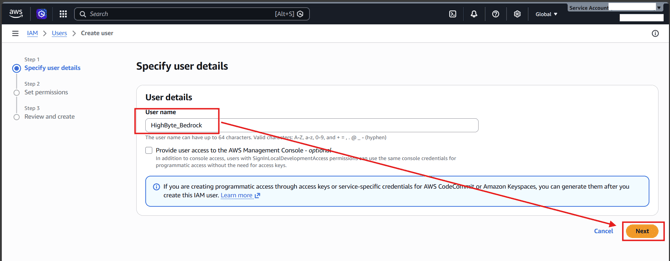
- Create a username that indicates this is the method by which HighByte Intelligence Hub will access Amazon Bedrock and select "Next." It is not necessary to give this user access to the AWS Management Console.
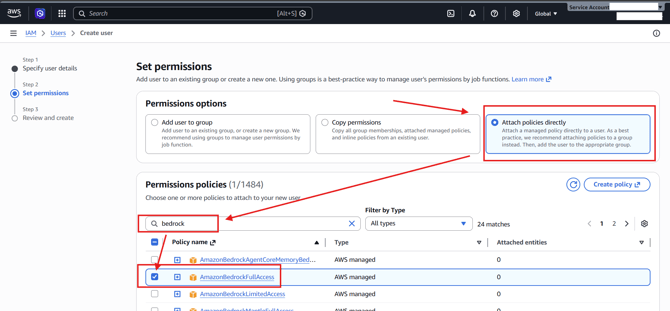
- To give permissions, "attach policies directly" to this user, and give it "AmazonBedrockFullAccess." Select "AmazonBedrockFullAccess." Select "Next" at the bottom of the page and finally "Create user."
Generating and Collecting Access Keys
Now that the user is created, it is necessary to generate keys and copy them to Intelligence Hub so that Intelligence Hub can access Bedrock through this user account.
-
Select the user using the "View User" banner or select the user from the users list.
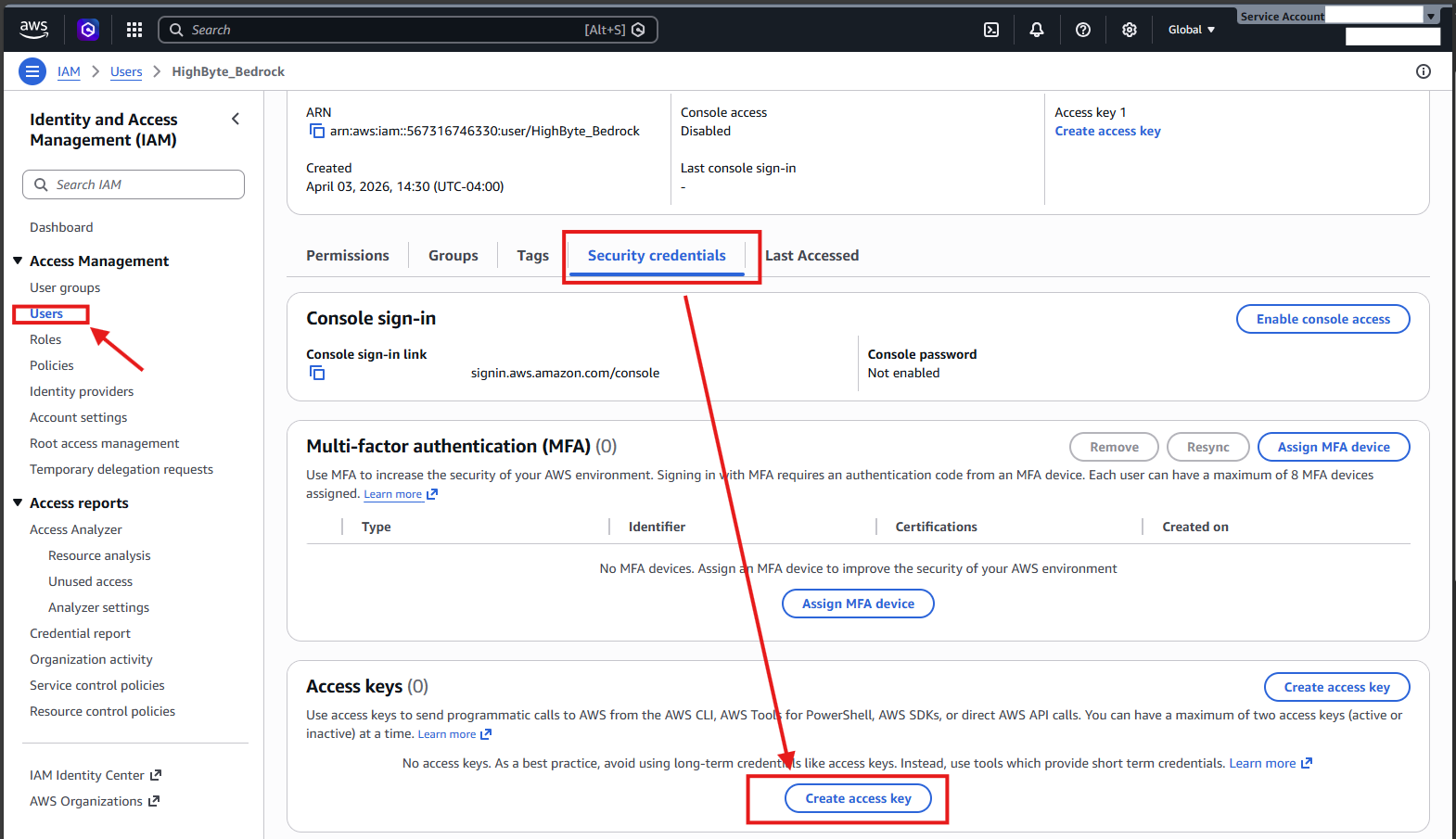
- Navigate to "Security credentials" and select "Create access key."
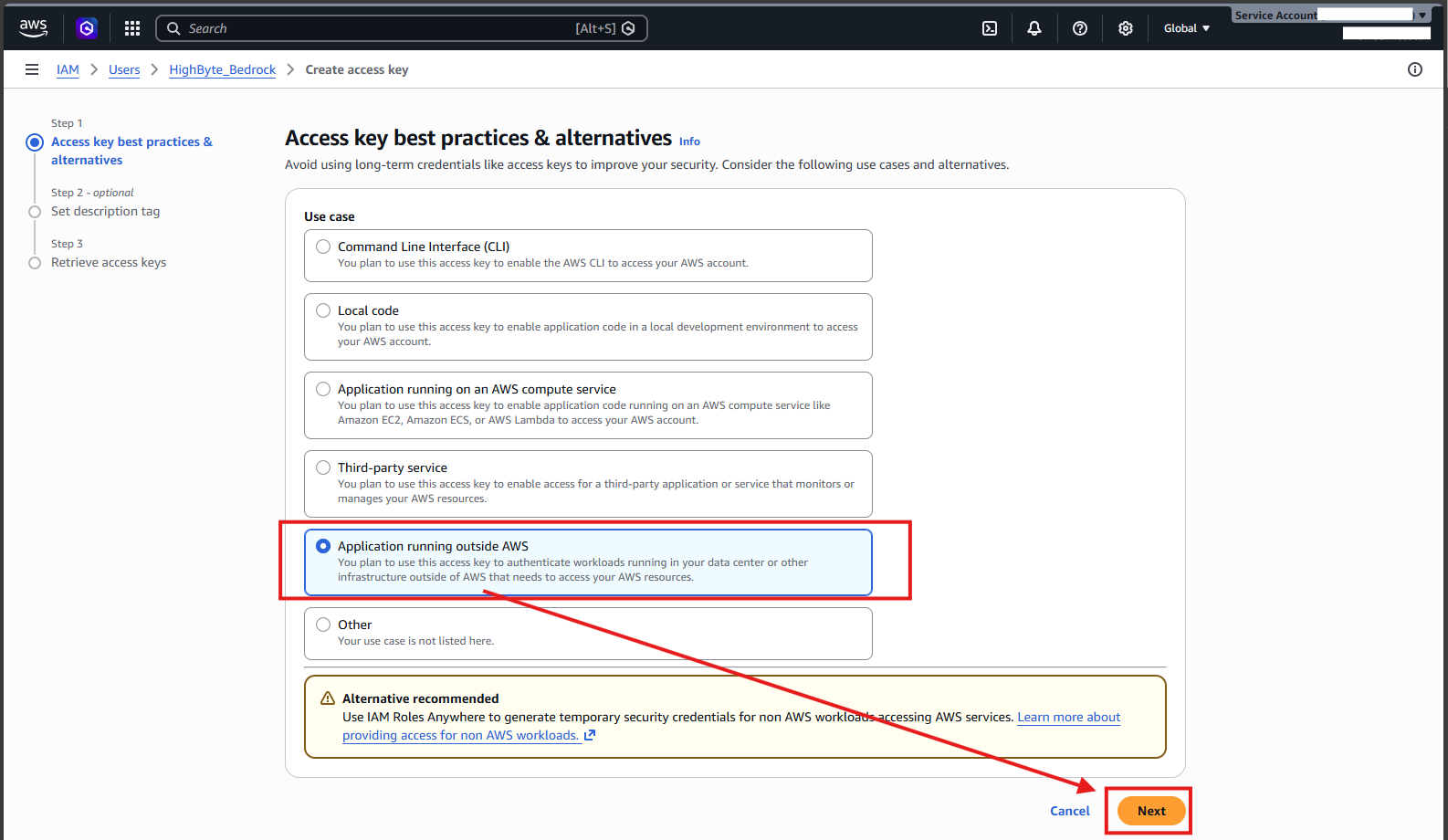
- Select "Application running outside AWS" and select "Next."
- Enter a name describing the access key and select "Create access key."
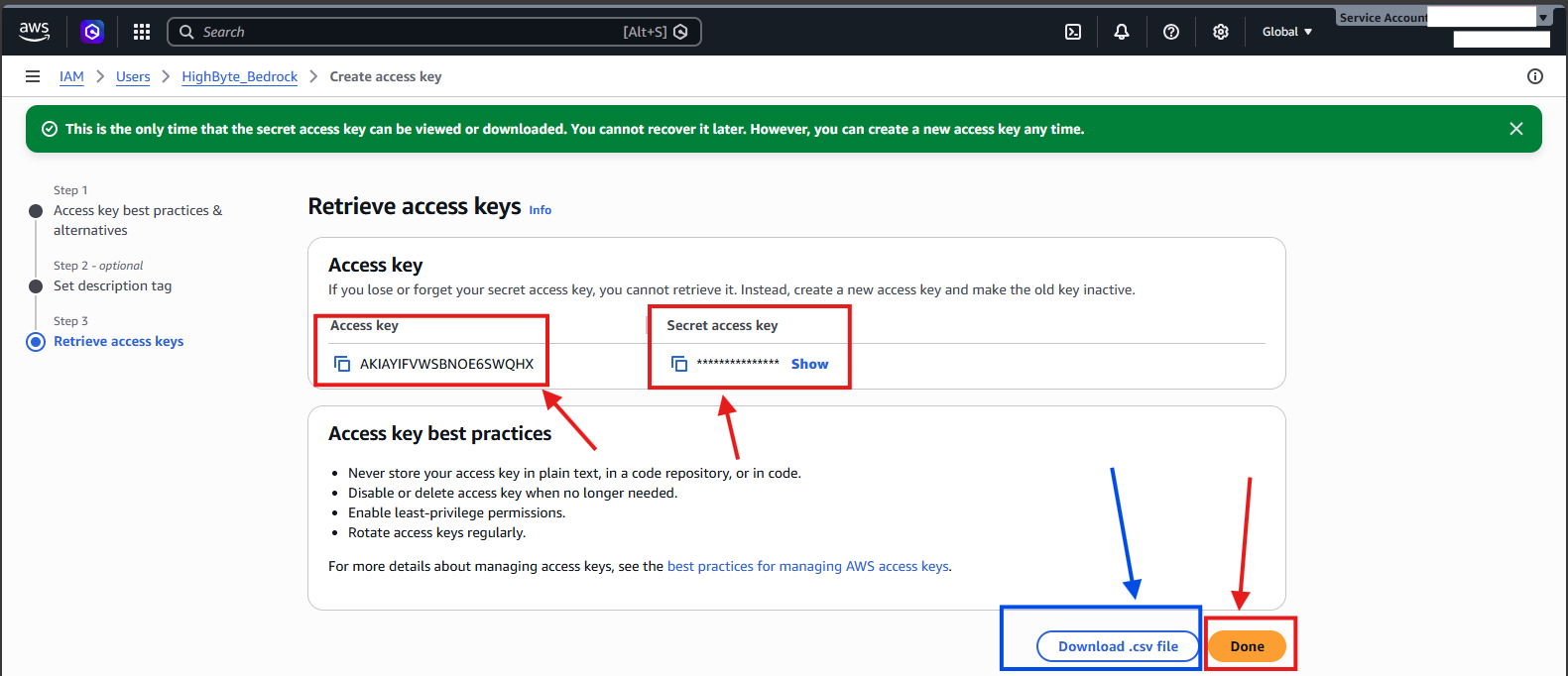
- Copy your new access and secret key securely, or download them via the CSV. These are the credentials that the Intelligence Hub will use to access Bedrock. Select "Done."
Building an Amazon Bedrock Connection In HighByte Intelligence Hub
The HighByte User Guide provides descriptions of each field for configuring a Bedrock Connection. The Access and Secret keys generated above are used to populate the respective fields in the Bedrock Connection. The connection also requires an AWS region to be specified. The most proximal or preferred AWS location should be chosen based on the installation location of Intelligence Hub. Using this method, an Endpoint is not necessary.
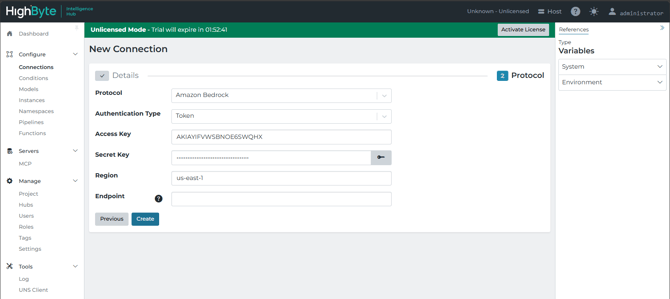
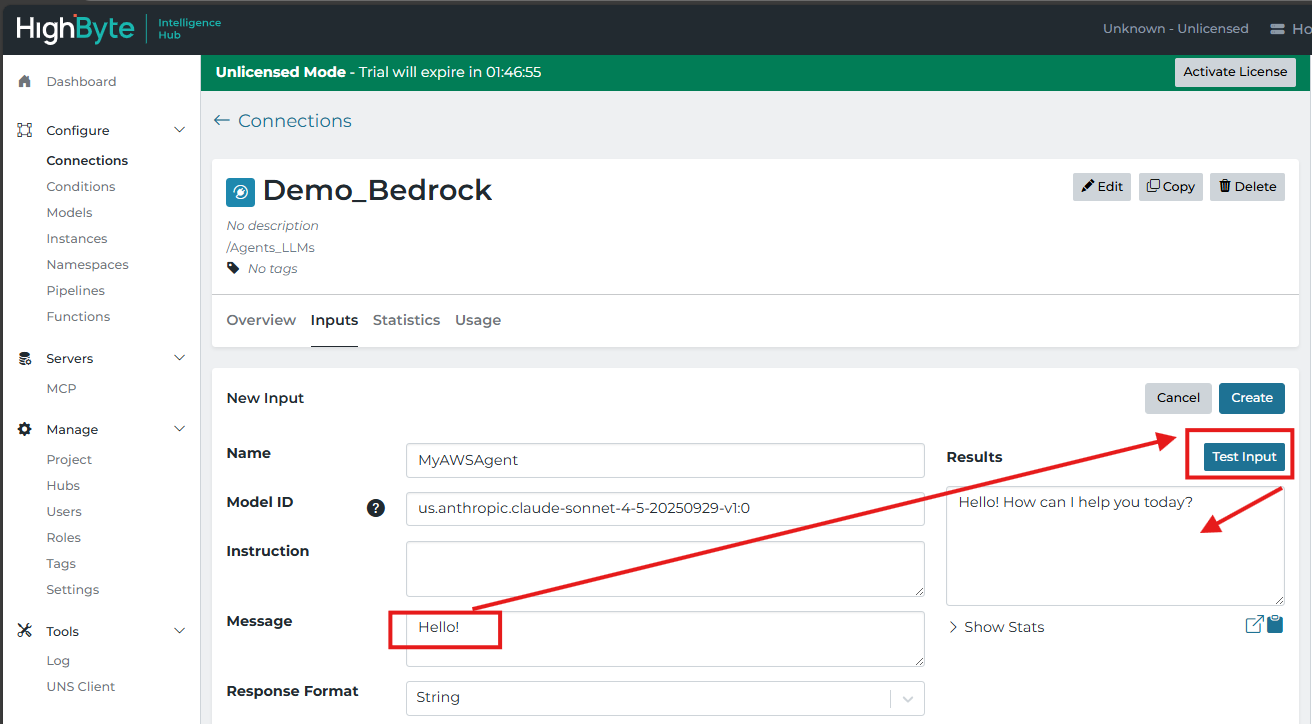
After clicking create, a new input can be created. The input will define the model to be used. A single connection can be used to access many models with different inputs. The models must be identified in particular. AWS Documentation contains the "Inference IDs" of these models. Different models have different strengths and costs. This example uses Claude, which has many sub-models with varying strengths. A test read may be sent with a Message.
Use the Pipeline Agent
With the connection made, the Pipeline Agent is ready! The pipeline agent can make use of ANY AI Connection to a model that supports tools. There are limitations in the size of the model needed and its efficacy. But this is not limited to AWS Bedrock. The pipeline agent sends large requests in excess of 10,000 tokens. This is beyond the scope of this article, but many small models may struggle with this. And this token count may be above the default limit for some systems.
The Intelligence Hub Pipeline Agent creates large queries - in excess of 10,000 tokens - select an LLM platform accordingly.
Navigate to a pipeline in Intelligence Hub and select the "Agent" tab from the right-hand side. Teh prompt box will appear at the bottom of the pane, along with a dropdown to select the preferred input from available AI connectors. If only one connection input is configured, it will auto-populate.
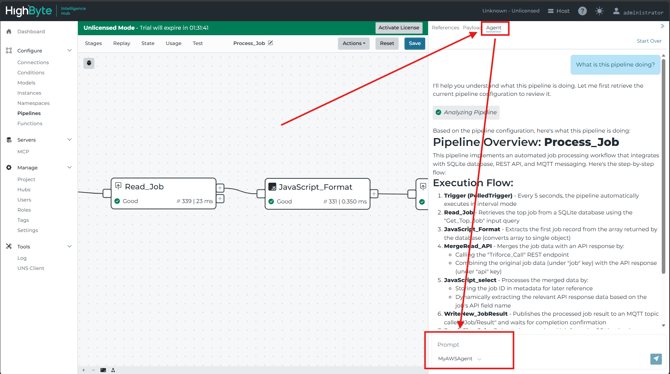
From here, a prompt may be entered, and the Pipeline Agent is prepared to respond.
Pipeline Agent Capabilities
The Pipeline Agent can be very flexible in its abilities depending on the underlying LLM. A good starting point would be to ask the agent "what tools can you access?" This would provide some insight into the types of tasks the agent can perform. These are the tools provided by HighByte so that the agent can interact with the active pipeline and associated resources.
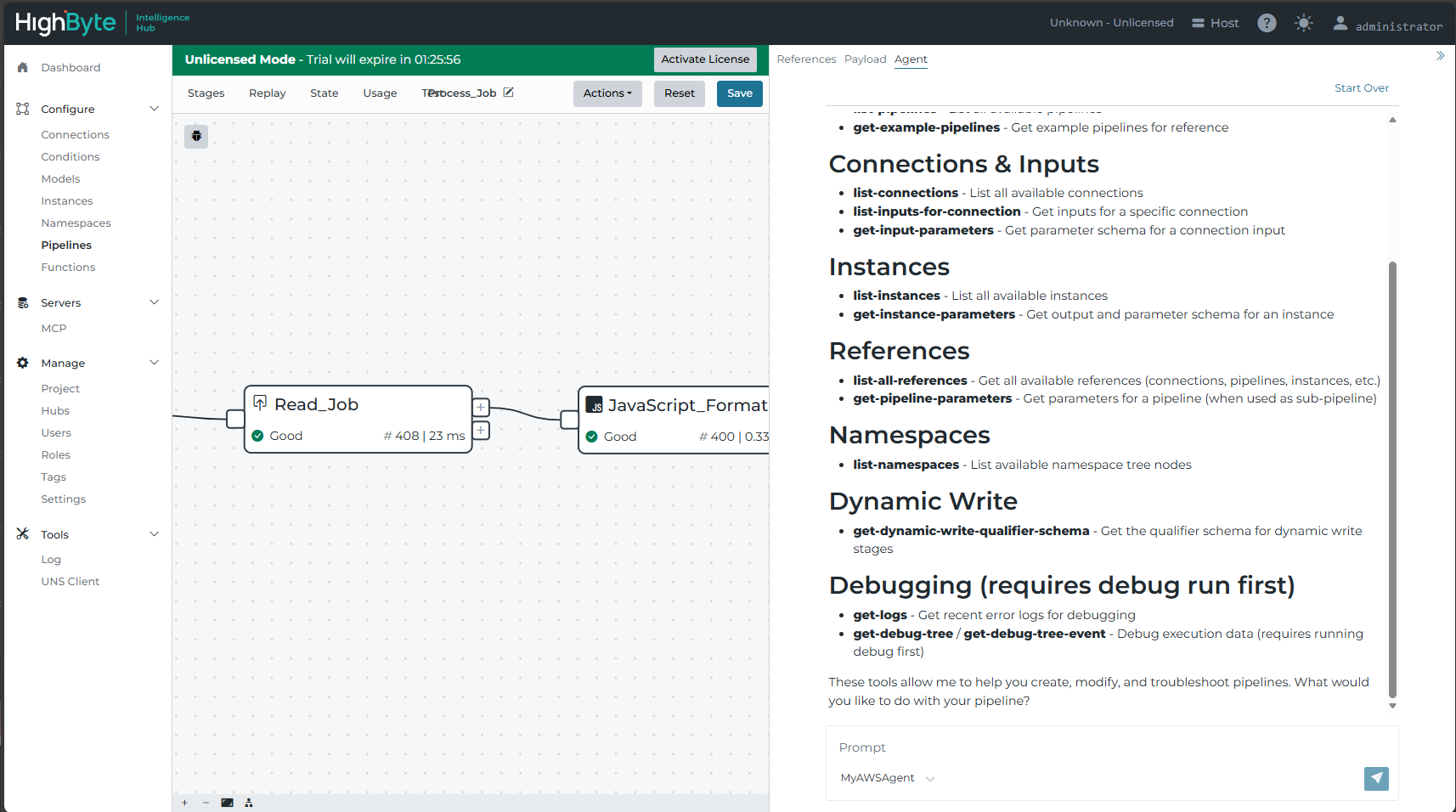
I have access to the following tools to help you work with pipelines:
Pipeline Management
- get-current-pipeline - Get the current pipeline configuration you're working on
- update-current-pipeline - Update the current pipeline with changes
- get-pipeline - Get any pipeline by name
- list-pipelines - List all available pipelines
- get-example-pipelines - Get example pipelines for reference
Connections & Inputs
- list-connections - List all available connections
- list-inputs-for-connection - Get inputs for a specific connection
- get-input-parameters - Get parameter schema for a connection input
Instances
- list-instances - List all available instances
- get-instance-parameters - Get output and parameter schema for an instance
References
- list-all-references - Get all available references (connections, pipelines, instances, etc.)
- get-pipeline-parameters - Get parameters for a pipeline (when used as sub-pipeline)
Namespaces
- list-namespaces - List available namespace tree nodes
Dynamic Write
- get-dynamic-write-qualifier-schema - Get the qualifier schema for dynamic write stages
Debugging (requires debug run first)
- get-logs - Get recent error logs for debugging
- get-debug-tree / get-debug-tree-event - Debug execution data (requires running debug first)
These tools allow me to help you create, modify, and troubleshoot pipelines. What would you like to do with your pipeline?
The Pipeline Agent can also access debug data to investigate specific pipeline runs.
A particularly helpful early task may be to explain to the user what a given pipeline is doing if the user is not already familiar with that pipeline. The agent would also be able to help a new user build or modify pipelines, or use Transform JavaScript or JSONata stages if the user were unfamiliar with those respective syntaxes. The agent could also likely express the other kinds of tasks it would be able to perform. Try it out!
Related Materials