
What Does This Article Cover?
Körber PAS-X is a MES (Manufacturing Execution System). MSI (Message Based Shopfloor Integration) enables message-based communication between PAS-X and industrial systems. An Intelligence Hub solution can be created to integrate with Körber PAS-X MSI. It uses the PAS-X MSI interface to integrate the two systems via Web Services.
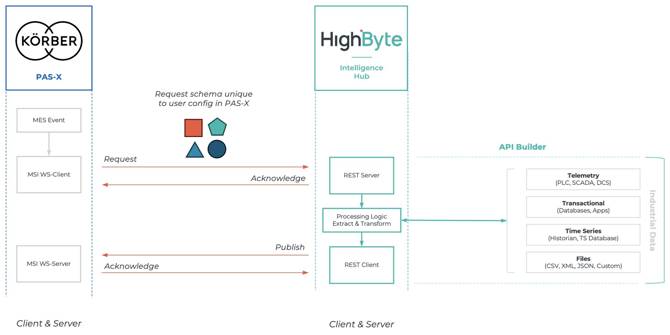
This example shows how the Intelligence Hub can receive a request from MSI. Intelligence Hub will capture the request and process it. Once the request is completed, it will publish the results back to MSI. Here is a diagram of how the components work together.
Configuration
Here is a download for the configuration used in this article. Download the configuration and import it into Intelligence Hub.
Only use version 4.4 if you are running version 4.4 or above.
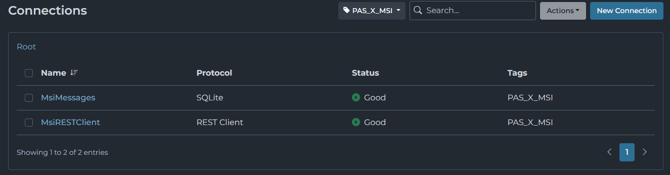
The configuration has two connections.
- MsiMessages is an SQLite connection that is used to store messages received by MSI.
- MsiRestClient is a Rest Client connection to publish results back to MSI. (Make sure to turn the toggle on when using the stage in a pipeline)
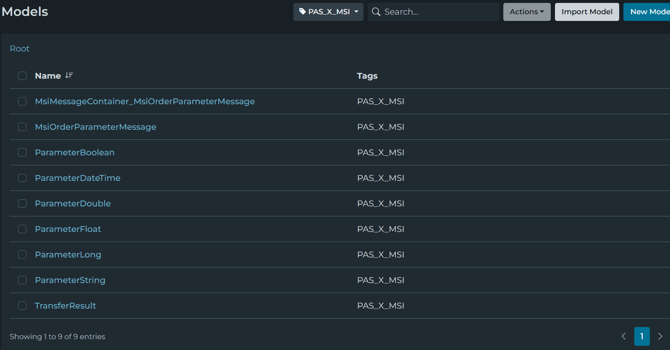
The configuration has nine models.
- MsiMessageContainer_MsiOrderParameterMessage is MSIMessageContainer for sending messages from HighByte Intelligence Hub to MSI. It has a child MsiOrderParameterMessage.
- TransferResult is the message structure for an acknowledge back to MSI after receiving message.
- MsiOrderParameterMessage is a structure for determining how messages should be processed. It can contain children based on the following types.
- ParameterBoolean is a parameter message for exchanging booleans.
- ParameterDateTime is a parameter message for exchanging datetimes.
- ParameterDouble is a parameter message for exchanging doubles.
- ParameterFloat is a parameter message for exchanging floats.
-
- ParameterString is a parameter message for exchanging strings.
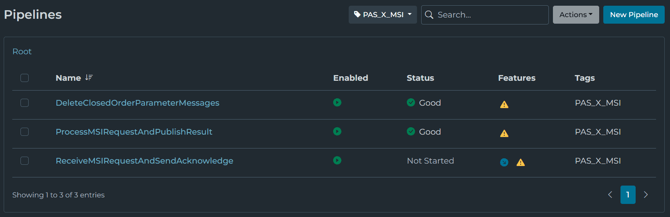
The configuration has three pipelines
- ReceiveMSIRequestAndSendAcknowledge is used to receive the MSI message and send an acknowledgement message. It also is used to save the messages received into an SQLite database.
- ProcessMSIRequestAndPublishResult is used to read the messages from the SQLite database, process the result and send the result to MSI.
- DeleteClosedOrderParameterMessages is used to delete closed messages from the SQLite database.
SimuMsi Client
Here is the interface description XML file that is used in the SimuMsi simulation client.
Download these interface descriptions in a file with an XML extension. Place this file into its own folder. Then, open SimuMsi. Set the General Settings to the folder of the interface descriptions. Once done, restart the SimuMsi client.
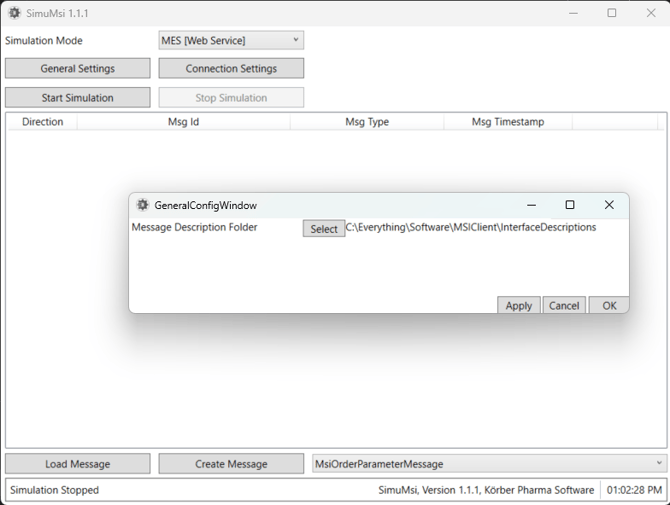
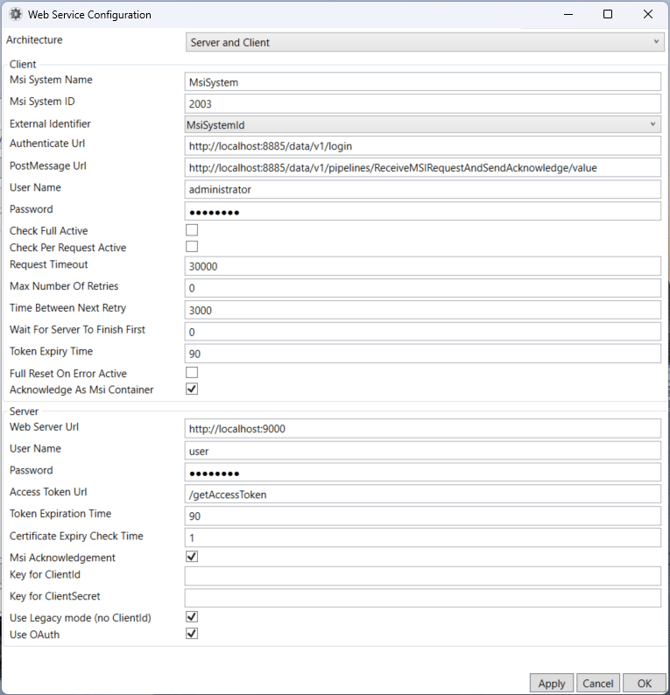
Next, make sure the Simulation Mode is set to MES [Web Service]. Open Connection Settings. Make sure the setting match what is defined in the screenshot. The Client Password is the password for the user in Intelligence Hub. The Server password should be "password".
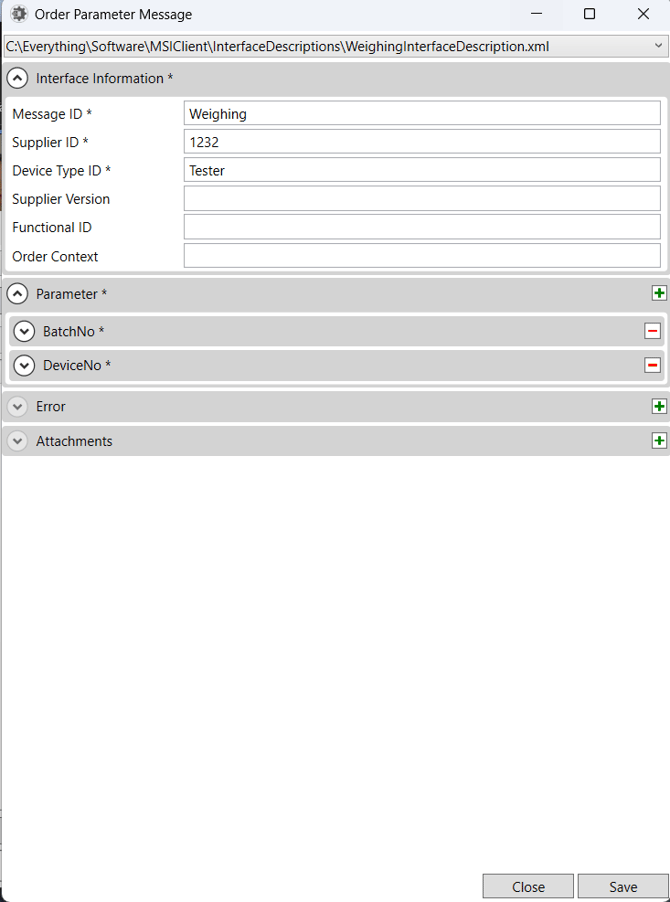
Now, you are ready to use the SimuMsi client. Press "Start Simulation". Next, you first need to create a message. Select Create Message. Then, populate the parameters and press Save.
Next, press Load Message to load and send the message. Once loaded, press Send.
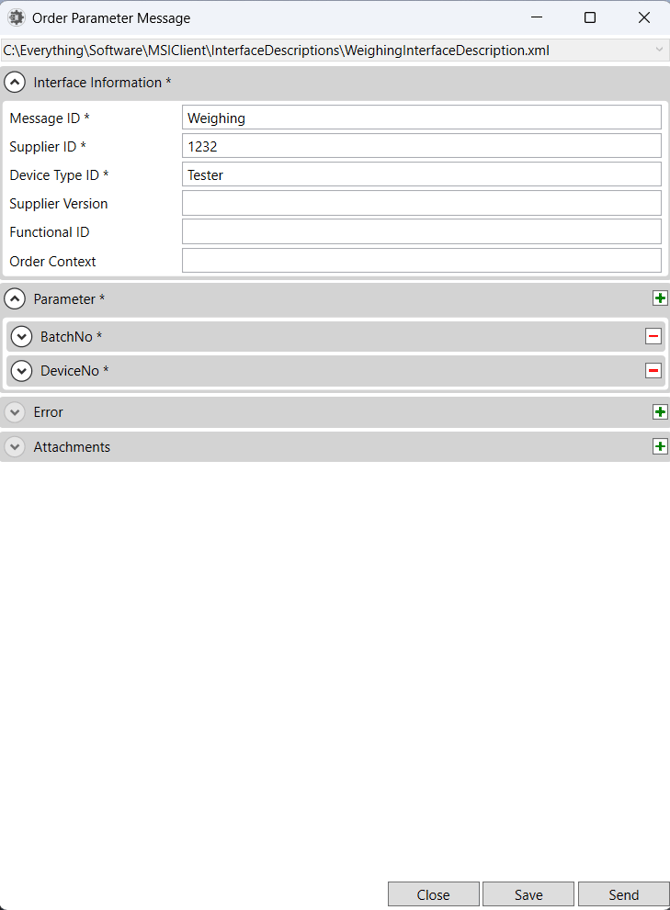
If everything is configured correctly, you should first see your sent message. Then after a few seconds, response should be received.
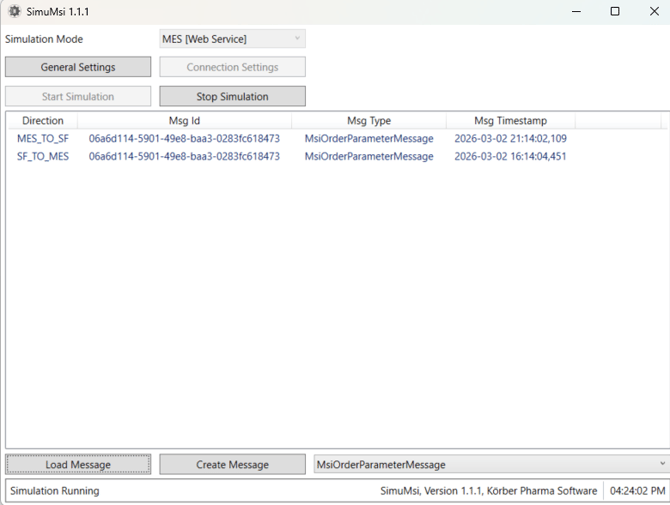
Click on the response to view the result with weight.
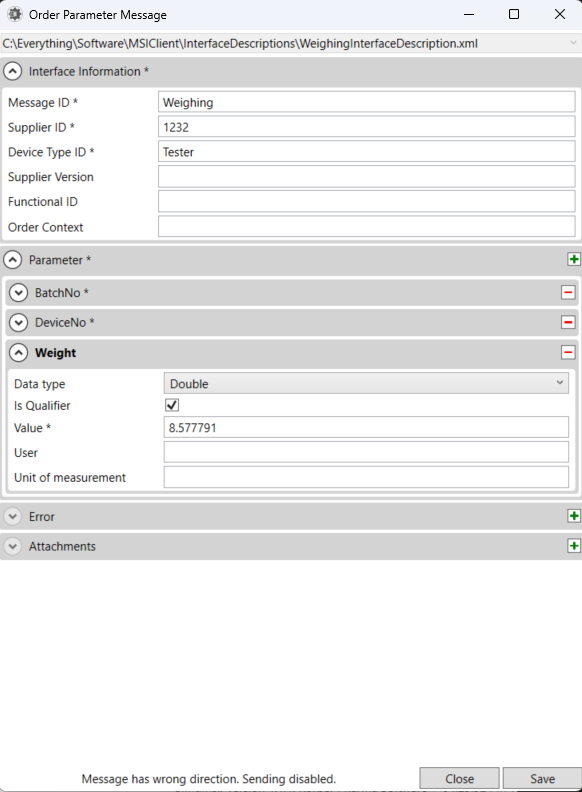
If the messages are not sent as expected, check the Services.log, which will be generated in the same folder, and SimuMsi.exe. Also, turn on Replay in the Pipelines in Intelligence Hub to make sure they are functioning properly. You can also check the Events Log in Intelligence Hub.
Solution Video
Here is a video that shows this integration between PAS-X MSI SimuMsi and HighByte Intelligence Hub.