
What This Article Is About
In this configuration, the Namespace is going to be used to organize the assets called CNC, and turn them into a hierarchy that points to each machine node to the same parameterized Instance. Each node will have a different parameter value. To find more information about Namespaces, you can go to the User Guide, which explains the basics of how Namespaces work, having one Namespace, but being able to have multiple root nodes with each Namespace node referencing one source, and supported sources include Inputs, Instances, and a Callable Pipeline. Then, once you build your Namespace, it can be queried with Smart Query.
Purpose
When using a Namespace when, you want to place data into a clear hierarchy and access it consistently. The Namespace is going to be a useful way for organizing data, querying the needed part of the tree with Smart Query, and still providing consistent access to configuration data across hubs, including Central Data examples. In this specific example and project, the Namespace is going to be used ot organiza machines under the
Enterprise/Lincoln/Area/Line/CNC_Machine and reuse one Instance for multiple machines
How This Example Works
This project follows the standard HighByte pattern, which follows > Connections > Inputs > Models> Instances > and Namespaces. In the Configuration panel, the Model is what defines both the information and instances representing the data by pulling together those data sources. For this example, the Namespace will 'sit' on top of that modeling layer and place the final asset object into a hierarchy.
Step 1: Creating the Source Connection
This project uses two Connections:
- HB_Tutorial_OPC_UA
- HB_Tutorial_SQL_Server
Step 2: Create a parameterized Input
This project will use two specified inputs:
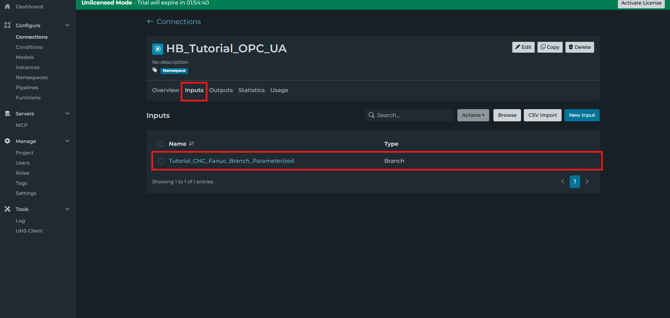
The OPC UA Input Tutorial_CNC_Fanuc_Branch_Parameterized uses this identifier:
Tutorial.CNC_Fanuc_
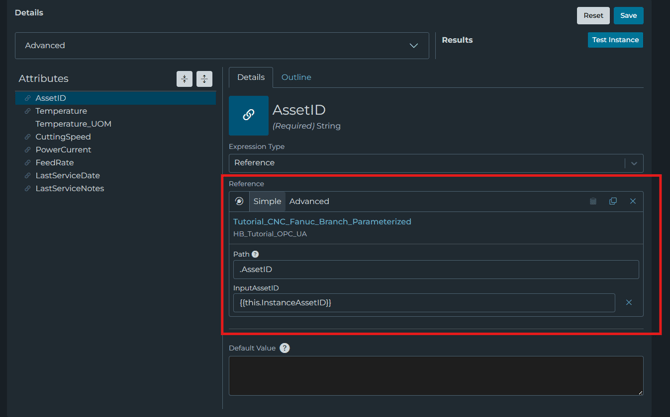
Its parameter model defines InputAssetID, and its template pattern is "1001-1003". This means the same Input can read different CNC branches by changing the parameter value.
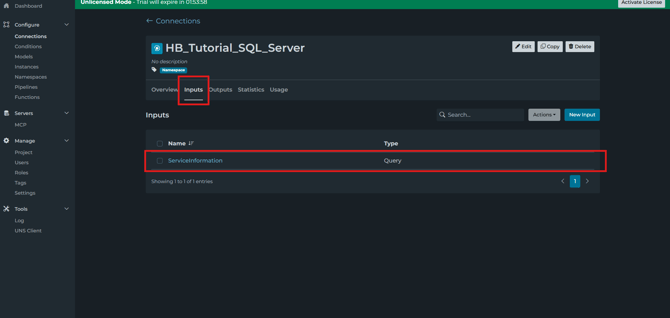
The SQL Input ServiceInformation uses this query:
SELECT * FROM [serviceinfo].[dbo].[cmms_servicelogs]

WHERE asset_id = 'Fanuc '
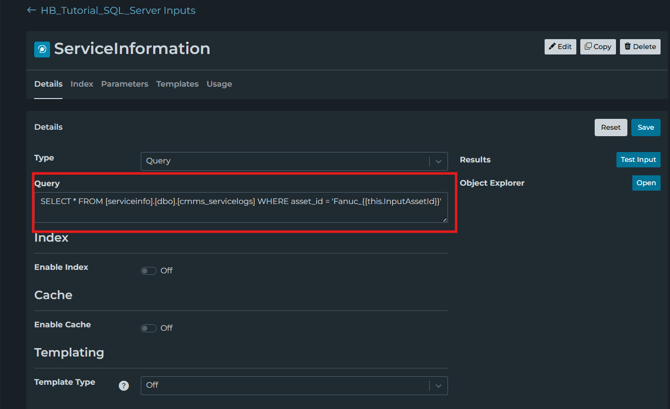
In the example above, in the parameter model, it defines the InputAssetId, which means that the same SQL Input can return service records for different assets by changing the parameter value with the query shown.
Step 3: Create the Model
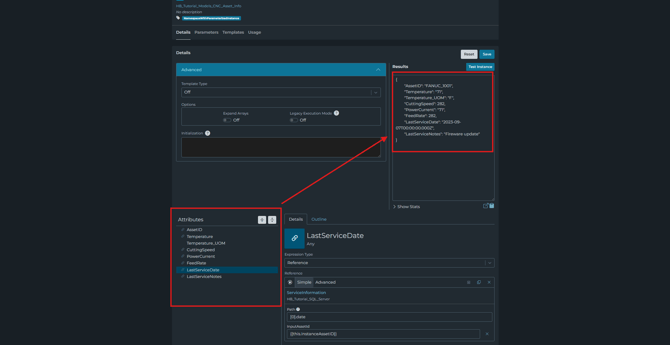
This project creates the Model HB_Tutorial_Models_CNC_Asset_Info. The Model contains these attributes:
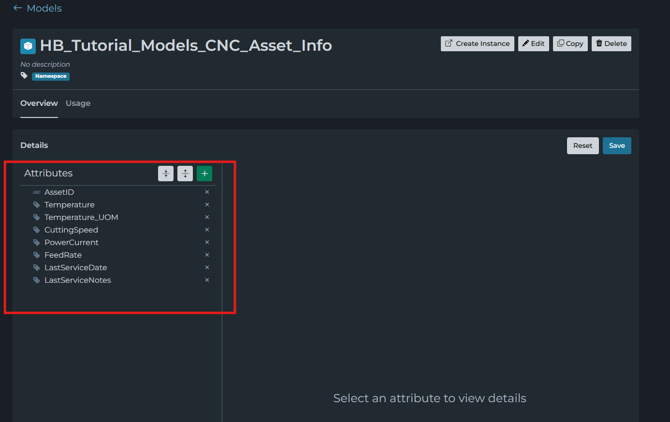
When a Model has a list of attributes like the following, it represents the definition of information. In this example, the Model defines what one CNC asset should look like, regardless of where its values come from as well as labels it properly.
Step 4: Create a parameterized Instance
This project defines the Instance CNC_Asset_Info_Instance_Prameterized, which uses the Model HB_Tutorial_Models_CNC_Asset_Info. The instance has a parameter named InstanceAssetID with the pattern 1001-1003.
Inside the Instance, the OPC UA-backed attributes reference Tutorial_CNC_Fanuc_Branch_Parameterized and pass
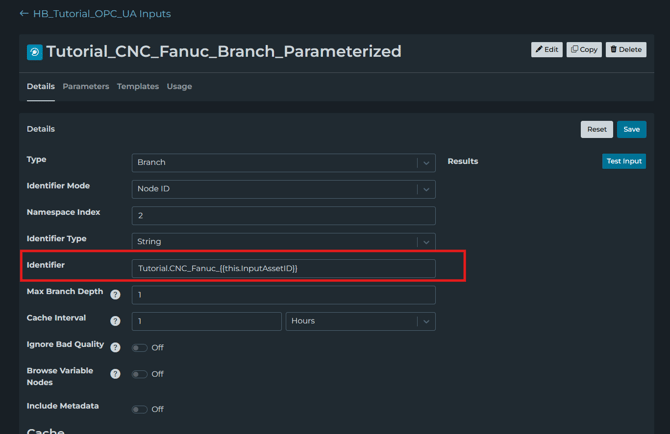
The service-related attributes reference ServiceInformation and pass the same thing through the identifier, which allows the Instance to represent more than just one machine, as it is reusable. The parameter value tells it which asset to read from in the OPC UA and SQL connection. This instance shows how a model defines the shape, and the instance is a specific thing built from that shape, with real data attached.
Step 5: Build the Namespace Structure
Next is the example of a Namespace node being created as a root node, and then arranged into a hierarchy in project.namespace to create some context
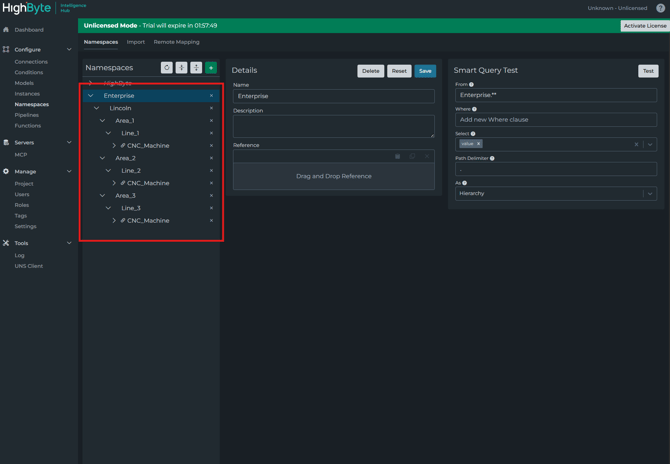
Step 6: Add the Instance to the Namespace nodes that should expose data
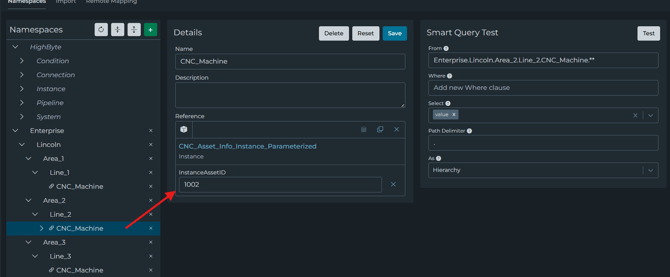
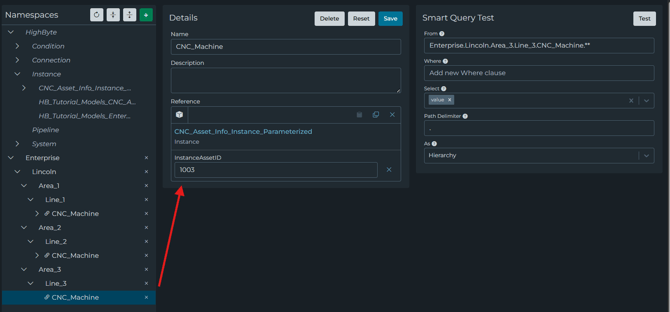
Namespaces can reference a source. In this project, the three CNC_Machine Namespace nodes reference the same source type: an Instance. Each one points to CNC_Asset_Info_Instance_Parameterized, but each one passes a different parameter value. The hierarchy stays the same, but each machine node passes a different parameter into the shared Instance.
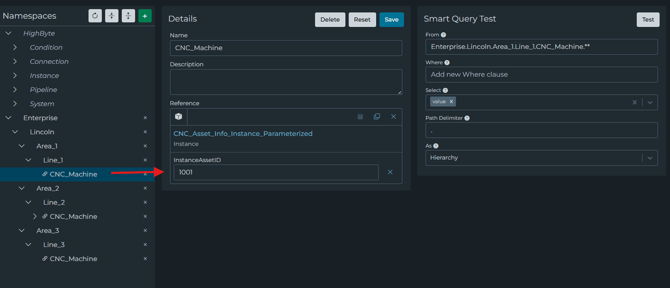
Step 7: Use the Namespace to access the modeled data
Once a Namespace is built, the Smart Query feature can query all or part of it. In this specific example, no pipelines are being used, but the Namespace is still ready to expose the CNC asset objects from those CNC_Machine nodes. Each machine node points to one Instance, and that Instance will resolve its values through the parameterized inputs.
Other Related Material
- Models User Guide
- Namespace User Guide
- Central Data User Guide
- Getting Started: Namespaces and Smart Query