
What Does This Article Cover?
HighByte® Intelligence Hub supports integration with DuckDB as a lightweight, high-performance option for querying industrial time-series data stored at the Edge. The process to configure DuckDB is provided below. This article covers the following.
- What is DuckDB?
- Why DuckDB?
- Installing DuckDB
- Limiting Memory Usage
- Merging Files
- Parquet ETL
- Considerations
- Other related material
What is DuckDB?
DuckDB is an open-source, embedded analytical database designed to run SQL queries directly against file-based data (such as Parquet, CSV, and JSON) without requiring a separate database server. HighByte® Intelligence Hub supports integration with DuckDB as a lightweight, high-performance option for querying industrial time-series data stored at the Edge. For manufacturers working with large volumes of historian or sensor data in Parquet format, this combination enables fast, code-efficient data access without the overhead of a full data warehouse deployment.
Why DuckDB?
Intelligence Hub version 4.5 introduced a Parquet format option for AVEVA PI System Connection Inputs. In this scenario DuckDB can be used for on-disk processing of Parquet files in Pipelines. Additionally, DuckDB might generally be a simpler and lightweight alternative to Spark for processing large data file.
Installing DuckDB
Use the following steps to install DuckDB for use with Intelligence Hub.
- Download the latest DuckDB JAR file
https://duckdb.org/install/?platform=windows&environment=java
- Move the JAR into the Intelligence Hub lib directory
runtime/lib
- Start or restart the Intelligence Hub
Mounting DuckDB JAR File into a Docker Container
When using a docker container, the jar file needs to be mounted into the docker container using a mount command. The jar file will physically reside on the host filesystem and will be defined as a virtual file within the docker container. Here is an example of mounting the DuckDB jar file. The jar file is physically located in C:\Temp and will be mounted into the /usr/local/highbyte/runtime/lib folder on the docker container.
--mount type=bind,source=C:\Temp\duckdb_jdbc-1.5.3.0.jar,target=/usr/local/highbyte/runtime/lib/duckdb_jdbc-1.5.3.0.jar
Here is an example of a complete docker command that creates a container with port mappings, using an environment variable to accept the EULA, mounting the appData folder and mounting the DuckDB jar file. See Docker Configuration in our Users Guide for more detail using this link.
docker create -p 45248:45245 -p 1891:1885 -p 8888:8885 -e ACCEPT_EULA=Y --name highbyte_r8 --mount type=bind,source=C:\Installs\hb_r8,target=/usr/local/highbyte/appData --mount type=bind,source=C:\Temp\duckdb_jdbc-1.5.3.0.jar,target=/usr/local/highbyte/runtime/lib/duckdb_jdbc-1.5.3.0.jar highbyte:4.5.0
Create JDBC Connection for DuckDB
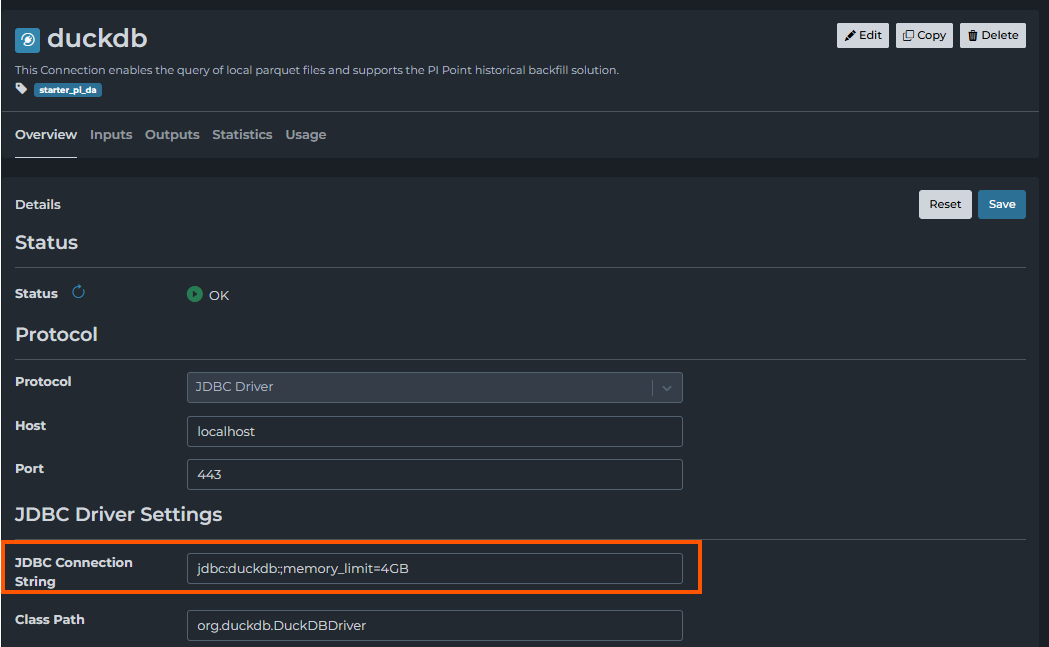
Create a connection in Intelligence Hub and specify JDBC Driver as the connection type.
-
Host and Port properties are required when creating the connection but will not be used. Just specify "localhost" for the Host and 443 as the Port.
-
JDBC Connection String
- For in-memory database
jdbc:duckdb:
-
-
For a file-backed database
-
jdbc:duckdb:C:\Users\User\Path\To\Database\file.db
- Class Path
org.duckdb.DuckDBDriver
-
SQL Syntax
PostgresSQL
Limiting Memory Usage
The DuckDB driver is initially set up to use as much memory as it can. This can be problematic when trying to process relatively large files. Limit the memory usage in the JDBC Connection String setting.
jdbc:duckdb:;memory_limit=4GB
Merging Files
DuckDB supports merging multiple Parquet files. Files can be selected using one of two mechanisms, File Glob syntax or absolute paths.
File Glob Syntax
This mechanism works well with static setups where there is consistent naming and pathing of files. It also avoids managing configuration on the Intelligence Hub side.
COPY (
SELECT * FROM read_parquet('C:\Users\User\ParquetStore\*.parquet')
) TO 'C:\Users\User\ParquetStore\Merged.parquet' (FORMAT PARQUET);
Other examples of syntax possible with Glob:
-
Match all Parquet files in the directory
*.parquet
-
Match files like data_2020.parquet or data_2024.parquet (? matches any single character)
data_202?.parquet
-
Matches all files whose name begins with data_2024_
data_2024_*.parquet
-
Match files starting with sales_ or inventory_
{sales,inventory}_*.parquet
-
Match Parquet files in all subdirectories recursively
**/*.parquet
Absolute Paths
This mechanism is intended for scenarios where certain files must be cherry-picked within a crowded directory. It is most useful when files are landing in multiple directories or when there is less consistency with file naming. This mechanism can also be driven by input parameters, supporting use cases where the pipeline identifies one or more files and parameterizes the input to process those exact files.
COPY (
     SELECT * FROM read_parquet([
          '',
          '',
          ''
     ])
) TO 'C:\Users\User\ParquetStore\Merged.parquet' (FORMAT PARQUET);
Parquet ETL
DuckDB supports on-disk ETL of Parquet files. This connector can be used to rename columns, transform values, or perform complex operations like filtering rows based on conditional logic.
Rename Column
The query below renames the "name" column to "point":
COPY (
     SELECT * EXCLUDE (name), name AS point
    FROM read_parquet('C:\Users\User\ParquetStore\')
) TO 'C:\Users\User\ParquetStore\Renamed.parquet' (FORMAT PARQUET);
Model Values
The query below combines numerical values (value_int64 and value_double) into one column (valueNumeric) and the remaining values (value_string and value_boolean) into a stringified column (valueOther).
COPY (
     SELECT
         * EXCLUDE (name, value_internal_type, value_system_type, value_int64, value_double, value_string, value_name             AS pointName,
        CASE
             WHEN value_internal_type IN ('int64', 'double')
             THEN COALESCE(value_int64::DOUBLE, value_double::DOUBLE)
        ELSE NULL
        END AS valueNumeric,
        CASE
             WHEN value_internal_type NOT IN ('int64', 'double')
             THEN to_json(COALESCE(value_string::VARCHAR, value_boolean::VARCHAR))::VARCHAR
             ELSE NULL
         END AS valueOther
     FROM read_parquet('C:\Users\User\ParquetStore\merged.parquet')
) TO 'C:\Users\User\ParquetStore\modeled.parquet' (FORMAT PARQUET);
Filter Values
The example query below filters rows so that only rows where value_int64 is populated remain.
COPY (
     SELECT *
     FROM read_parquet('C:\Users\User\ParquetStore\')
     WHERE value_int64 IS NOT NULL
) TO 'C:\Users\User\ParquetStore\Filtered.parquet' (FORMAT PARQUET);
Reading Parquet Data
The following is an example query that reads data from a Parquet file.
SELECT * FROM read_parquet('C:\Users\User\ParquetStore\Data_WithMetadata.parquet')
Considerations
Performing on-disk operations
To perform on-disk operations, the COPY method wraps the query and copies the resulting data into a specified file. If COPY were not used, the query would instead return the transformed data inline.
Good no data
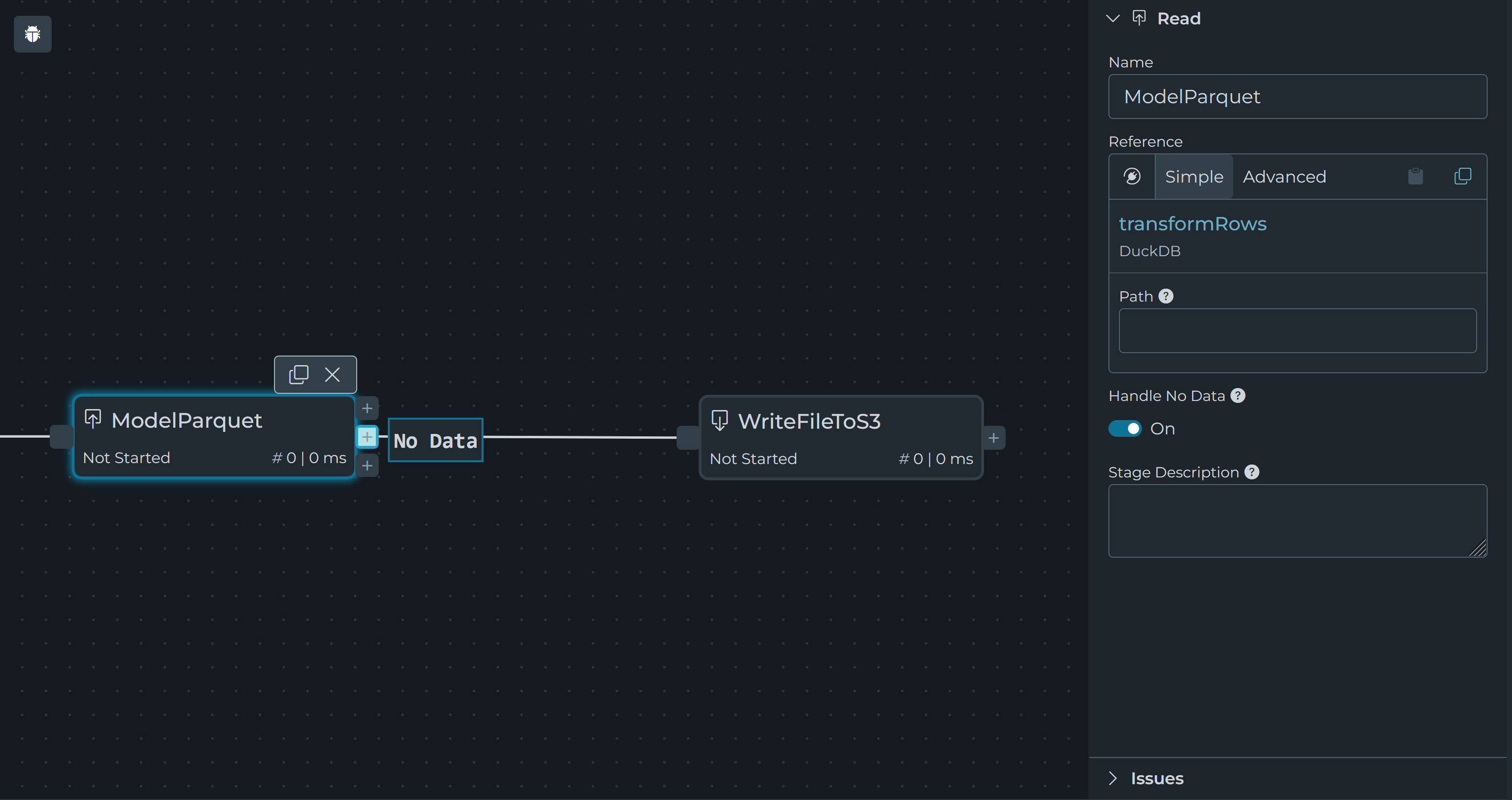
Because COPY is used and no data is returned from the queries, all on-disk operations will return Good No Data. This means pipeline execution will stop when the queries are run. There are two ways to work around this: run a second query, or use the Good No Data handler on the Read Stage in pipelines.
Running Two Queries
The secondary query below returns a single value to the pipeline, so the Good No Data result becomes a Good result.
COPY (
     SELECT * FROM read_parquet('C:\Users\User\ParquetStore\*.parquet')
     ) TO 'C:\Users\User\ParquetStore\merged.parquet' (FORMAT PARQUET);
SELECT 1 AS value;
Other related material: