
The example configuration is from Intelligence Hub v4.3.4, but the key point is that when a Cron Trigger is set to Local, it uses the local time of the Intelligence Hub runtime environment. When Intelligence Hub is running in Docker, that means the local time is available inside the container.
Key point: To make the container use the expected timezone, set the TZ environment variable when creating or running the container.
For more information about Time Zones: https://en.wikipedia.org/wiki/List_of_tz_database_time_zones
Example Configuration:
The exported project configuration has two pipelines
- IncrementCounter
- ResetAtMidnightAndIncrementCounter
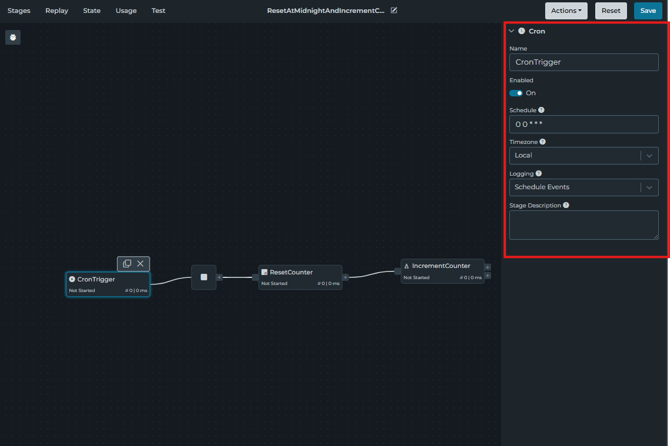
The pipeline that should be focused on ResetAtMidnightAndIncrementCounter. In theIntelligence Hub, it shows the CronTrigger to appear like this:
What The Cron Schedule Means
The Cron schedule is set as 00***, this means that the trigger runs at midnight every day. However, the important part to realize is that the setting looks like Timezone: Local, but local does not define a specific timezone by itself. It tells the Cron Trigger to use the local timezone of that server. When Intellifence Hub is installed in Docker, this is the local timezone available inside that container.
Why This Matters in Docker
In this Pipeline example, the goal is for the ResetAtMidnightAndIncrementCounter pipeline to run at midnight.
However, if the Docker container's local timezone is not the expected site timezone, then a Cron Trigger set to Local may not run at the expected local time. To avoid that, set the container timezone when creating the container.
Docker Example:
The following example sets the container timezone to America/New_York using the Docket environement variable using the Docker environment variable flag:
docker create -p 45248:45245 -p 1891:1885 -p 8888:8885 -p 9004:9001 --name highbyte_r8_43 -e ACCEPT_EULA=Y -e TZ=America/New_York --mount type=bind,source=C:\Installs\appData43,target=/usr/local/highbyte/appData highbyte:4.3.4Then start the container:
docker start highbyte_r8_43
With this configuration, The Cron Trigger still uses:
Timezone: Local
But the container's local timezone is now being set through the Docker environment variable.
How the example pipeline works
The ResetAtMidnightAndIncrementCounter pipeline is triggered by the Cron Trigger.
The first stage is a JavaScript stage named: ResetCounter
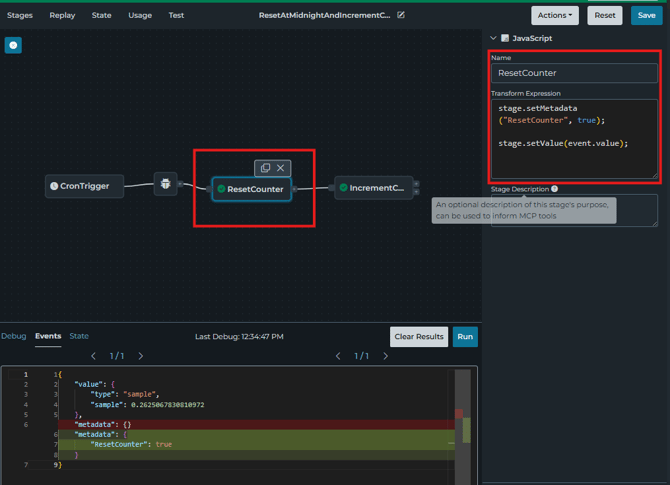
Its expression is:
stage.setMetadata("ResetCounter", true);
stage.setValue(event.value);
This adds a metadata flag named ResetCounter.
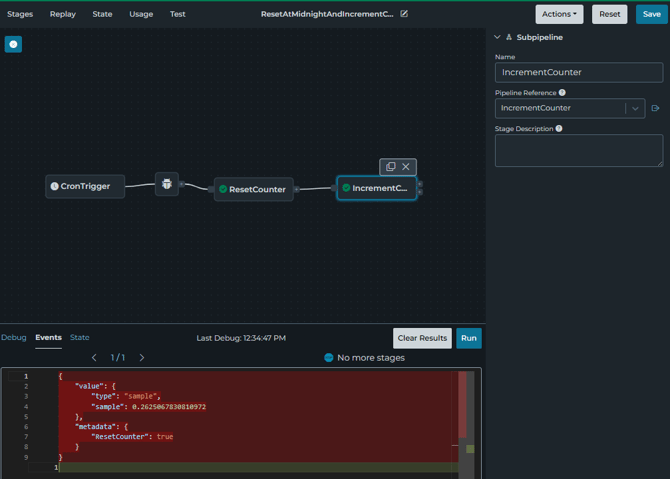
The next stage is a Sub-Pipeline stage named: Increment Counter
It calls the pipeline:
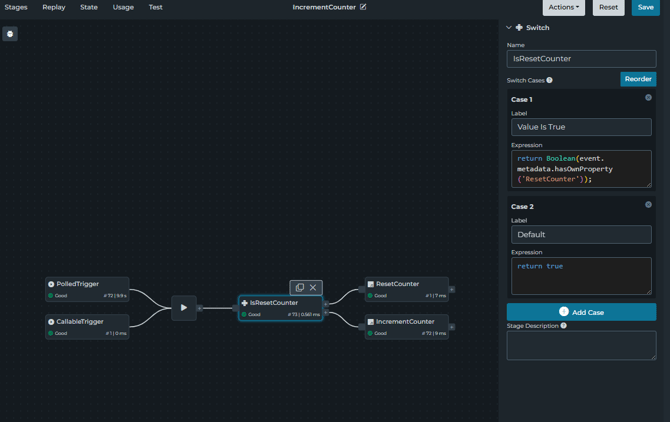
The IncrementCounter pipeline uses a Switch stage named: IsResetCounter
The Switch checks whether the event contains the ResetCounter metadata:
return Boolean(event.metadata.hasOwnProperty('ResetCounter'));
If the metadata exists, the event is routed to the ResetCounter stage.
If the metadata does not exist, the event is routed to the IncrementCounter stage.
Counter Reset Behavior
When the reset path runs, the ResetCounter stage sets the pipeline state value named Counter to 1:
let currentCounter = state.pipeline.set("Counter" 1);
stage.setMetadata("Counter", 1);
stage.setValue(event.value);
When the normal increment path runs, the Increment Counter stage reads the current Counter value from the pipeline state, increments it, writes it back to the pipeline state, and adds it to metadata:
letcurrentCounter = state.pipeline.get("Counter", 0)
currentCounter++;
stage.setMetadata("Counter", currentCounter);
state.pipeline.set("Counter", currentCounter);
stage.setValue(event.value);
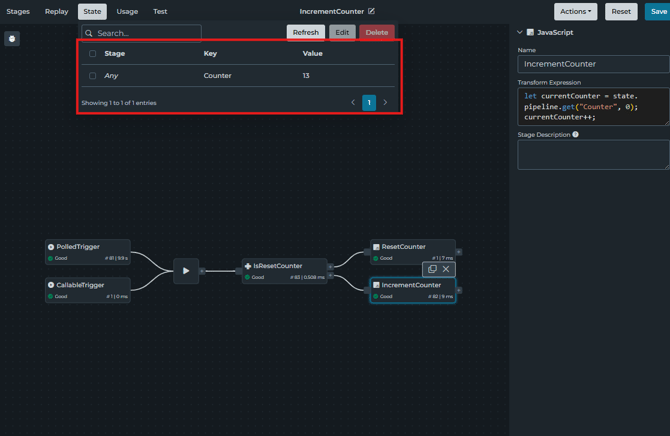
This pipeline logic is only used as an example. The main Cron Trigger behavior is controlled by
Schedule: 0 0 * * *
Timezone: Local
After the container is running, check the time inside the container:
docker exec highbyte_r8_43 date
Confirm that the returned time matches the expected timezone.
For this example, the Cron Trigger logging is enabled. In the UI, this appears as
Logging: Schedule Events
While testing, check the Event Log for the Cron Trigger schedule messages.
Summary
When using a Cron Trigger with Timezone set to Local, Intelligence Hub uses the local timezone of the runtime environment.
For Docker deployments, set the expected timezone when creating or running the container.
Example:
-e TZ=America/New_YorkThis helps ensure a Cron schedule such as:
0 0 * * *runs at the expected local midnight for the container.