What Does This Article Cover:
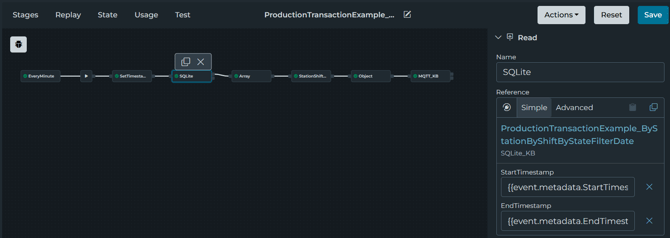
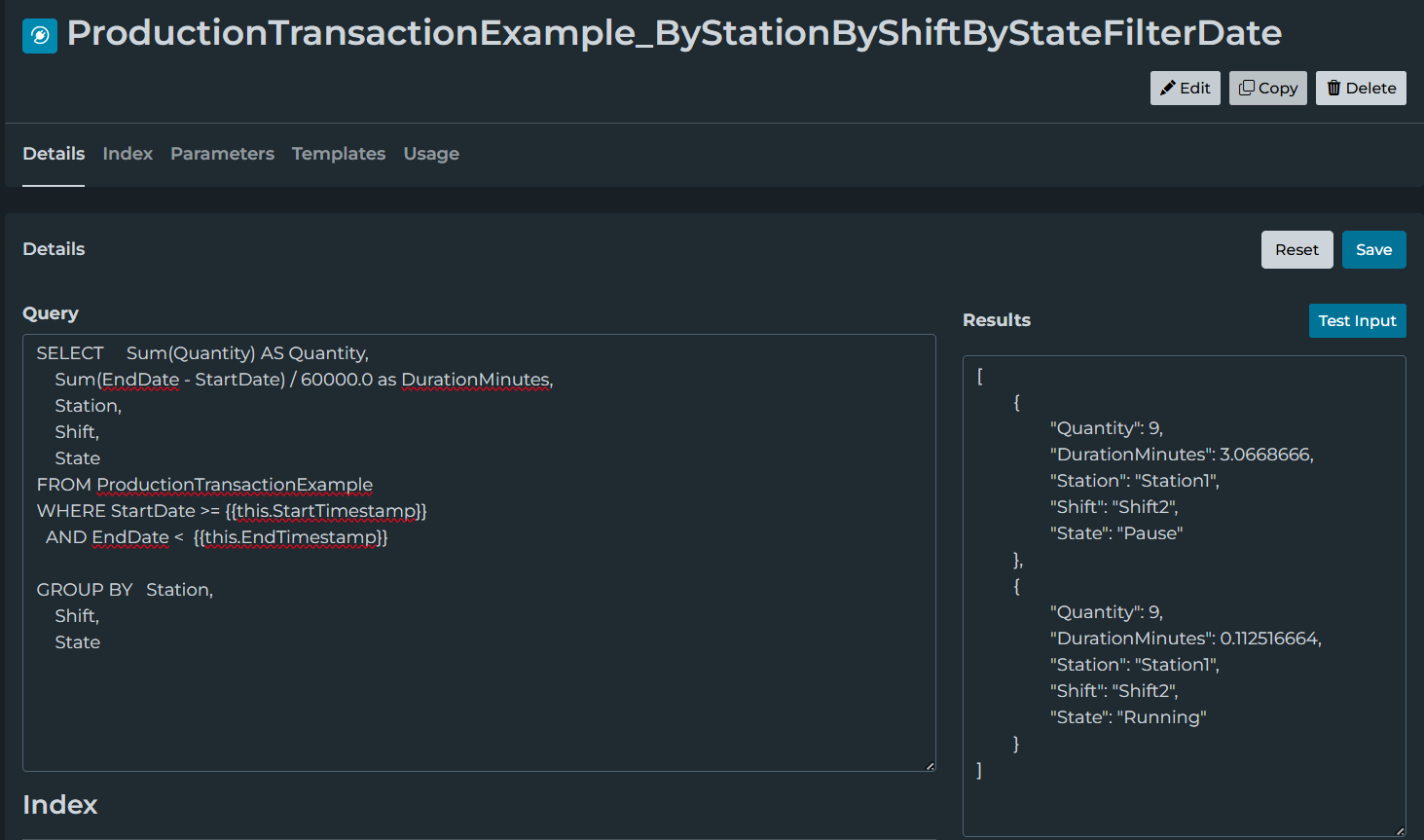
The article will show how data can be inserted into a database. Once the data is insert, then aggregate functions can be used to query the data on fixed intervals and outputted to a data source (e.g. MQTT).
Click here for the configuration used in this article.
Example Preparation
-
Enable Intelligence Hub MQTT broker
- In the left-hand navigation panel, navigate to Manage, and click Settings.
- Under the MQTT Broker section enable the broker, if ports 1885 and 1886 are in use on the server hosting your Intelligence Hub, update to ports of your choosing, otherwise accept the defaults and click the Save button.
-
Import the required content
- In the left-hand navigation panel, navigate to Manage, and click Project
- Within the Import screen, ensure Full Project is off (otherwise your existing project will be overwritten).
- Copy the JSON provided in the code window above.
- Change the Import Type to JSON and paste the provided JSON into the Project box and click the Import button.
- Update the imported Connections as required
-
Navigate to Configure and click Connections, click "MQTT_KB" and Update the MQTT settings as required based on the prior preparation step #1.
-
Navigate to Configure and click Connections, click "SQLite_KB" and update the path in the Database property. By default, the SQLite database will be stored in the default location of appData.

-
Click the Save button.
-
-
Setup the UNS Client
-
In the left-hand navigation panel, navigate to Tools and right click UNS Client and select Open Link in New Tab.
-
Enter login information.
-
For Connection select "MQTT_KB".
-
For Subscribed Topics enter "ProductionTransactionExample/#".
-
Click Add.
-
Click the "x" to remove topic "#".
-
Click the Connect button.
-
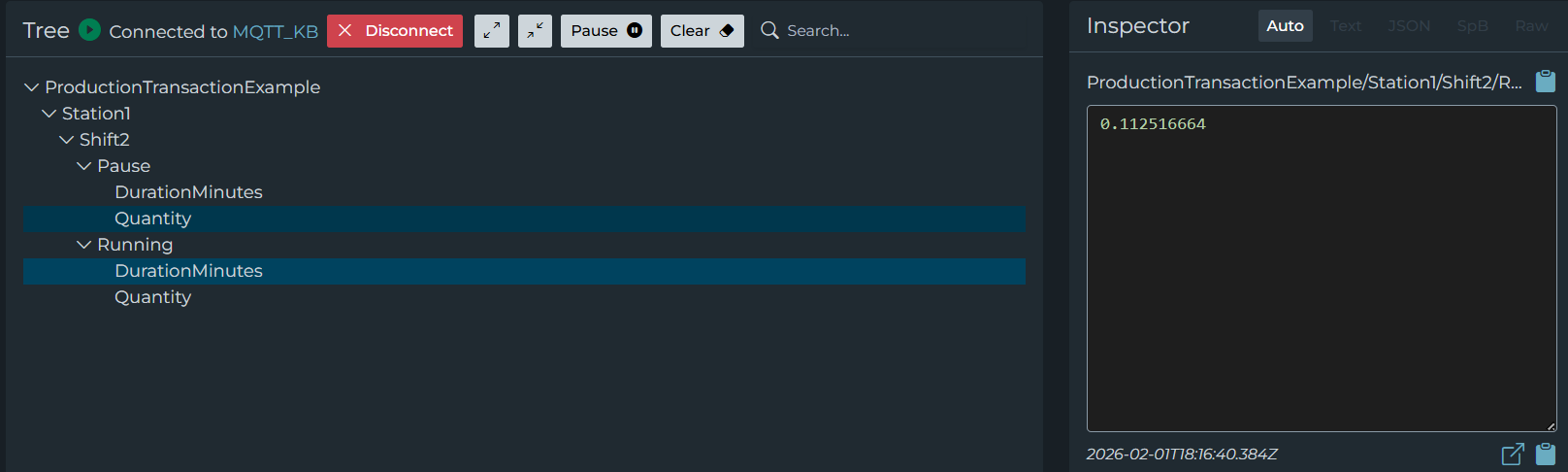
Confirm the UNS Client says "Connected to MQTT_KB".
-
Return to the previous web browser tab.
-
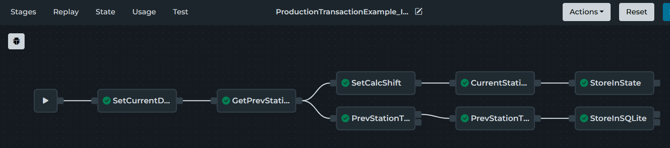
ProductionTransactionExample_Insert pipeline:
{
     "ProductionID": 1,
     "OrderNumber": "1",
     "MaterialNumber": "A",
     "SerialNumber": "B",
     "Station": "Station1",
     "State": "Running",
     "Quantity": 3,
}
Here is a screenshot of the pipeline:
ProductionTransactionExample_UpdateMQTT: