
Purpose
- Quick overview of HighByte Intelligence Hub
- Walkthrough deploying on Siemens Industrial Edge
- Reference for getting started with configuring the Intelligence Hub
Prerequisites
Before beginning, confirm the following:
- Access to a Siemens Industrial Edge Management (IEM) instance
- An Edge Device provisioned and visible in your IEM
- Network connectivity between IEM and the target Edge Device
- HighByte Intelligence Hub available in your IE Hub Library (see below)
Overview of HighByte
HighByte Intelligence Hub is a DataOps software solution purpose-built for industrial data. The Intelligence Hub enables manufacturers to securely collect, model, and stream industrial datasets to and from IT systems without writing or maintaining code. Deployed at the Edge, the Intelligence Hub merges real-time, transactional, and time-series data into a single payload for consuming applications — no code required.
Overview of Siemens Industrial Edge
From Siemens documentation:
The Siemens Industrial Edge platform is the central infrastructure for the integration and expansion of the connectivity for data exchange between automation and IT systems. It combines local and high-performance data processing directly in the automation system with the advantages of a cloud. Industrial Edge platform provides app-based data analysis, data processing and Infrastructure-as-a-Service concepts with central update functionality.
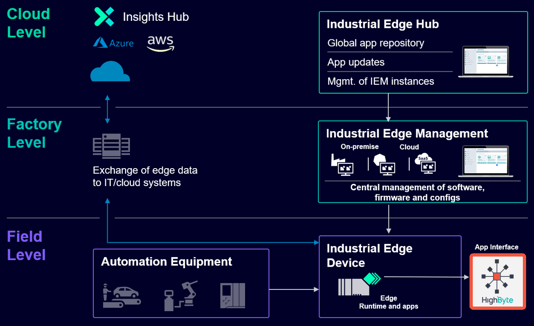
Learn more: Siemens Industrial Edge Documentation
Together
HighByte Intelligence Hub runs as an application on the Siemens Industrial Edge platform. Siemens Industrial Edge provides the device management, compute, and connectivity infrastructure at the plant floor — the Intelligence Hub is deployed to those devices as a managed application, where it executes the DataOps integration logic: collecting data from OT sources, contextualizing it into modeled datasets, and streaming it to IT and Cloud targets.
Configuration of the Intelligence Hub is centrally managed and pushed across the fleet, meaning integration logic is defined once and deployed consistently to every edge device — without writing or maintaining code.
IE Hub
The Intelligence Hub is included as a System App and should already appear in your IE Hub Library.
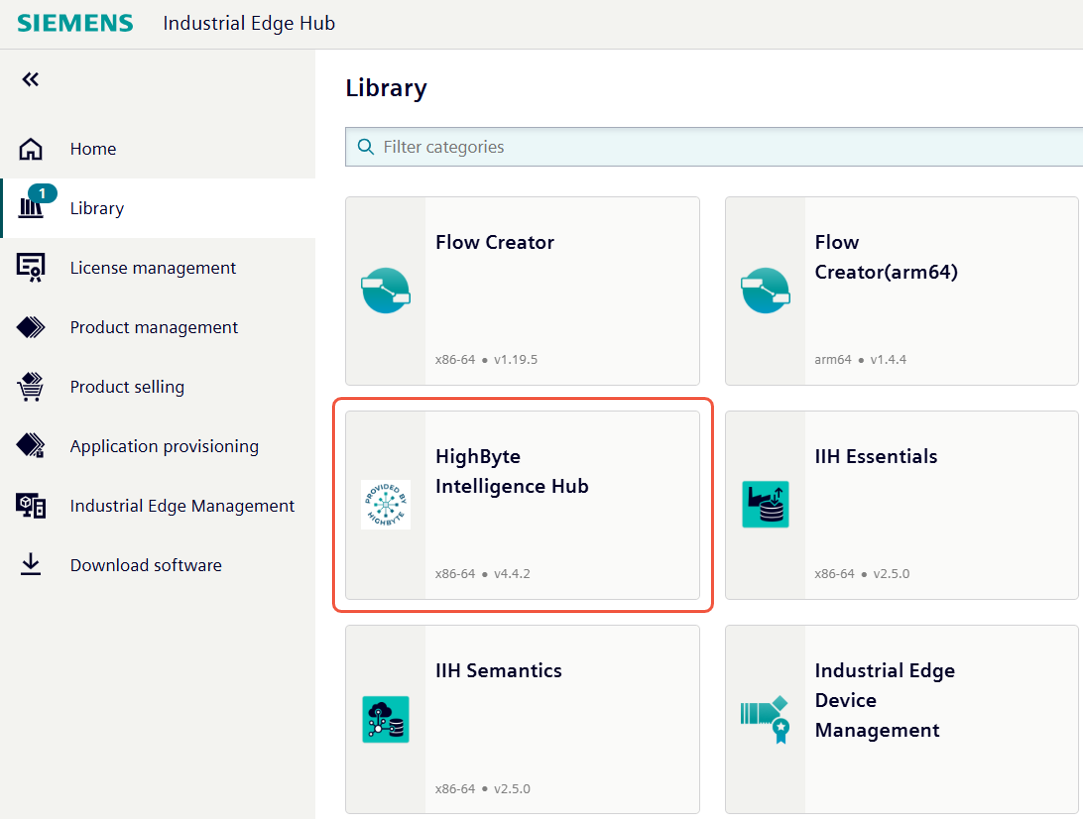
You may have already navigated here from Product details > Documentation > Manual.
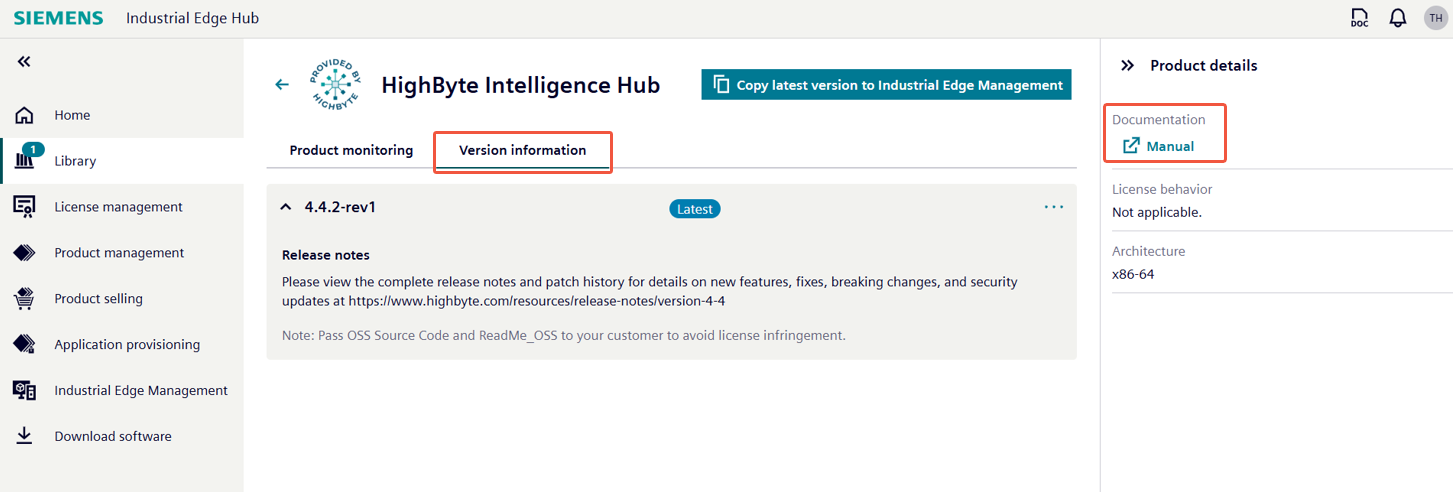
As with other apps, click "Copy latest version to Industrial Edge Management" to add it to your target IEM's app catalog.
IE Management
The app should then appear in your IEM catalog.
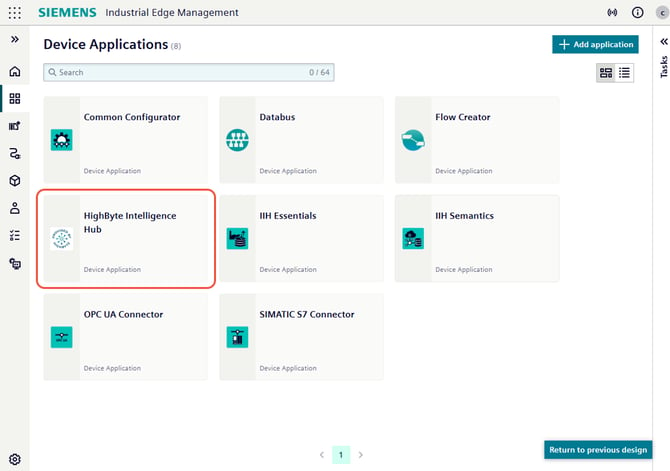
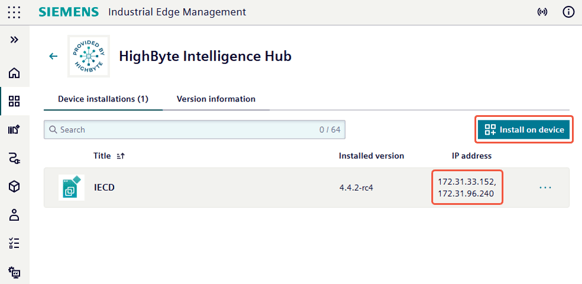
As with other apps, select the desired target Edge Device to install to.
Note: Device IPs are listed here. Depending on your network topology, there may be more than one IP associated with each network segment. Verify which IP is appropriate for your environment before proceeding.
App Configuration
When installing to the selected device(s), there are configuration fields specific to the Intelligence Hub.
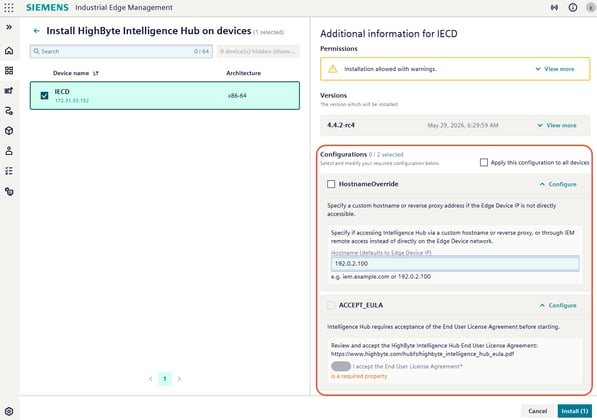
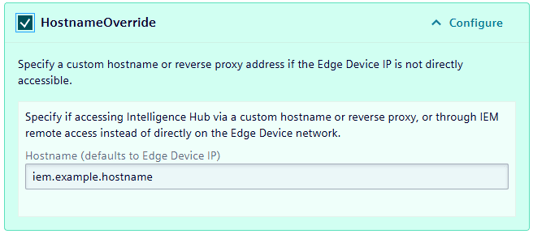
HostnameOverride
This optional field specifies the IP or hostname used to reach the Edge Device. It is relevant if you will not access the Edge Device by its local IP address — for example, when accessing the device behind an external reverse proxy, via remote access from the IEM, or through other means. If navigating to the Intelligence Hub by clicking the app tile on the Edge Device, enter the hostname shown in the browser address bar here.
To apply: highlight the example IP, type the hostname to replace it, and check the checkbox.
ACCEPT_EULA
This required field confirms that you have read and accepted the HighByte Intelligence Hub End User License Agreement. Review the license at the following URL before proceeding: HighByte Intelligence Hub EULA
After reviewing the license terms, click the toggle button and check the box to accept.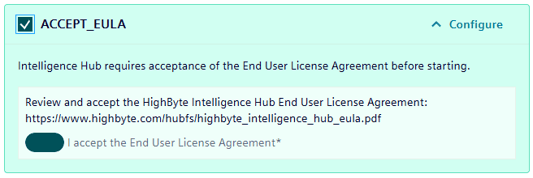
IE Device
The app should then appear on your Edge Device.
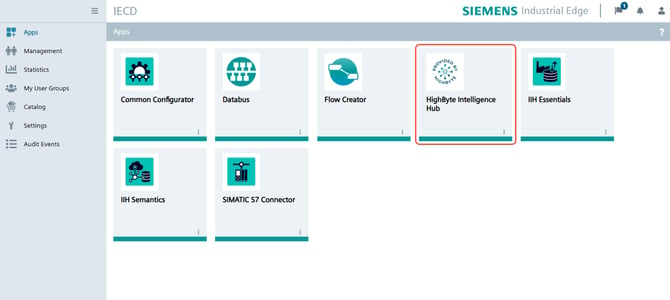
Intelligence Hub
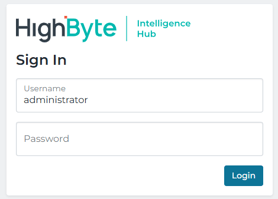
Login
The default password is blank. Click the login button to proceed.
Security note: Set a password after your first login to secure access to the Intelligence Hub.
For getting started with the Intelligence Hub, see Welcome to HighByte guide: Link
Troubleshooting
The app won't run on the Edge Device
Logs
Download and review the app logs from the Edge Device for diagnostic detail.
EULA Not Accepted
WARNING: EULA file not found at /appconfig/accept-eula.json
This error indicates the ACCEPT_EULA checkbox was not checked when installing the app. Reinstall the app and ensure the toggle is enabled and the checkbox is checked before confirming.
Broken Link / Network Error
If the page does not load, or you see an error such as the examples below, verify that the URL in the address bar is correct.
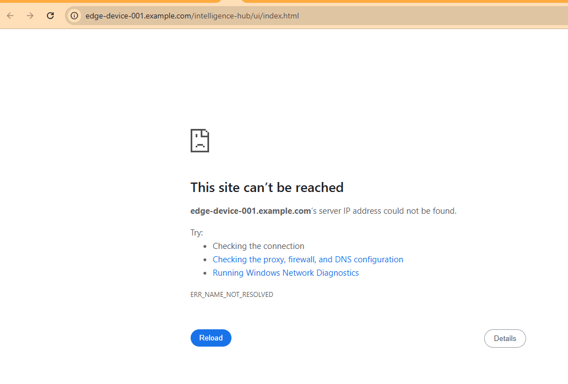
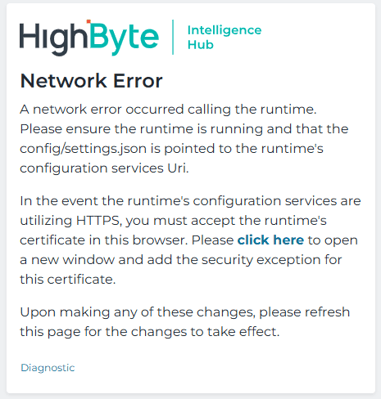
Check that the address bar shows the expected device URL. This issue typically occurs when the HostnameOverride value was mistyped during installation, or the checkbox was not checked. Reinstall the app with the correct hostname to resolve.