
-
What Does This Article Cover?
- Introduction
- Enabling OpenTelemetry
- Resource attributes
- Kubernetes metadata
- Extra/advanced properties
- Properties that are always applied
- Setting environment variables per platform
- Example: Visualizing with Grafana (all-in-one container)
- Accessing Grafana
- Capturing Multiple Intelligence Hubs
- Other related material
Introduction
OpenTelemetry (OTel) is an open-source observability suite that provides a standard method for collecting and forwarding telemetry data from applications to observers. These resources include metrics, logs, and traces — materials often used to build out supervision dashboards.
For HighByte Intelligence Hub, OTel can collect data from several layers. Intelligence Hub provides information describing connections and pipelines. The underlying Java Virtual Machine (JVM) provides metrics from the platform, like CPU and memory usage, and then the OTel stack itself provides information describing OTel overhead. Together, these metrics can offer a comprehensive description of your Intelligence Hub runtime.
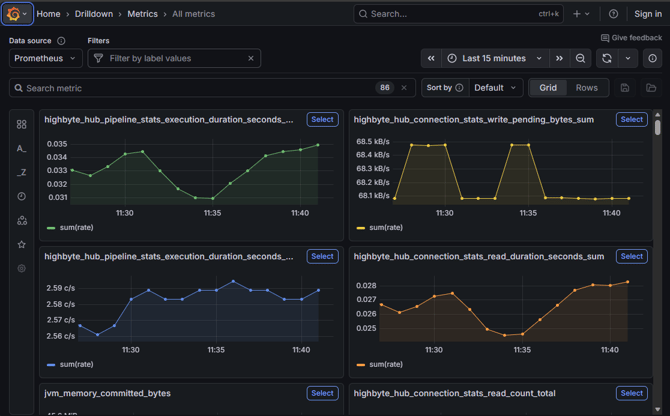
Intelligence Hub does not currently emit traces (trace sampling is disabled), so a tracing tool such as Tempo (see below) won't show any Intelligence Hub data — only logs and metrics apply.
Configuration is entirely via environment variables, read by the startup script (
start-windows.bat,start-linux.sh,start-macos.sh, or the Docker image'sstart.sh) before it launches the JVM.Enabling OpenTelemetry
Intelligence Hub exports data using the OpenTelemetry Java agent (
opentelemetry-javaagent.jar) bundled with the runtime. There is no separate "OTel mode" — the agent attaches automatically wheneverOTEL_COLLECTOR_ENDPOINTand/orOTEL_PROMETHEUS_PORTis set, and does nothing differently otherwise.There are two independent export modes, and they can be combined:
- Push (OTLP) — set
OTEL_COLLECTOR_ENDPOINTto your collector's OTLP HTTP endpoint, e.g.http:// :4318. Exports both metrics and logs to that collector. The Grafana example below uses this mode. - Pull (Prometheus) — set
OTEL_PROMETHEUS_PORTto a port, e.g.9464. Exposes a Prometheus-compatible scrape endpoint athttp:// : /metrics, for cases where you'd rather have your own Prometheus server scrape Intelligence Hub directly instead of pushing to a collector. Pull-only mode exports metrics but not logs — OTel log export is disabled unless a collector endpoint is also set. You can still visualize pulled data in Grafana by adding your Prometheus server as a data source. - Both — set both variables for a hybrid setup: metrics are exported both ways, logs are pushed to the collector.
Linux/macOS example:
export OTEL_COLLECTOR_ENDPOINT=http://otel-collector:4318 && ./start-linux.shWindows example:
set OTEL_COLLECTOR_ENDPOINT=http://otel-collector:4318 && start-windows.batDocker example:
docker run -e ACCEPT_EULA=Y -e OTEL_COLLECTOR_ENDPOINT=http://otel-collector:4318 -p 45245:45245 --name highbyte highbyte/intelligence-hub:latestSee Setting environment variables per platform below for persisting these across restarts or running as a service.
Resource attributes
Resource attributes identify which instance a given metric or log came from. The following are populated automatically:
Attribute Default Override with service.nameHighByteIntelligenceHubOTEL_SERVICE_NAME, orservice.nameinOTEL_RESOURCE_ATTRIBUTESservice.instance.idHA_NODE_IDif set, else the machine's hostnameservice.instance.idinOTEL_RESOURCE_ATTRIBUTEScontainer.nameCONTAINER_NAMEif set, else the machine's hostnameCONTAINER_NAME, orcontainer.nameinOTEL_RESOURCE_ATTRIBUTEShost.name,host.idsupplied automatically by the agent n/a OTEL_RESOURCE_ATTRIBUTESis a comma-separatedkey=value,key=valuelist, per the OpenTelemetry spec. Any key you set there directly always takes precedence over the defaults above.service.instance.idis the one most worth overriding in practice — in a Grafana/Prometheus dashboard, it (and its Prometheus alias, theinstancelabel — see Drilldown Aggregates below) is what distinguishes multiple Intelligence Hub instances from each other, and it defaults to a hostname rather than a human-readable name. For example:Windows
set "OTEL_RESOURCE_ATTRIBUTES=service.instance.id=myIntelligenceHub" start-windows.batLinux
export OTEL_RESOURCE_ATTRIBUTES=service.instance.id=myIntelligenceHub ./start-linux.shDocker
-e OTEL_RESOURCE_ATTRIBUTES=service.instance.id=r6See Docker Configuration for the full
docker run/compose context.Kubernetes metadata
When running in Kubernetes, expose the following as environment variables — typically via the Downward API — to attach them as resource attributes. Each is only added when set; none are required:
K8S_NAMESPACE_NAME,K8S_POD_NAME,K8S_POD_UID,K8S_CLUSTER_NAME,K8S_NODE_NAME,K8S_CONTAINER_NAME,K8S_POD_IP,K8S_DEPLOYMENT_NAME,K8S_STATEFULSET_NAME,K8S_DAEMONSET_NAME.Extra/advanced properties
OTEL_AGENT_PROPERTIES_EXTRApasses through additional OpenTelemetry javaagent properties, and can override the built-in defaults above (with the exception of the properties listed below). For example, to switch the OTLP exporter from HTTP to gRPC:> export OTEL_AGENT_PROPERTIES_EXTRA='-Dotel.exporter.otlp.protocol=grpc'Properties that are always applied
A fixed set of properties is applied after
OTEL_AGENT_PROPERTIES_EXTRA, so they take effect regardless of what you set there:-Dotel.instrumentation.enabled=false— stock OpenTelemetry auto-instrumentation is disabled; only what the Intelligence Hub itself emits via its own extension is exported.-Dotel.instrumentation.runtime-metrics.enabled=true— JVM runtime metrics (GC, memory, threads, etc.) remain enabled.-Dotel.instrumentation.logback-appender.enabled=false,-Dotel.instrumentation.log4j-appender.enabled=false,-Dotel.instrumentation.jul-appender.enabled=false,-Dotel.instrumentation.log4j-context-data.enabled=false— the agent does not hook into the JVM's own logging frameworks.-Dotel.javaagent.extensions=com.highbyte.intelligencehub.runtime.otel— loads HighByte's OpenTelemetry extension, which emits the actual Intelligence Hub metrics and logs.
Setting environment variables per platform
For a one-off or interactive run, set the variable in your shell before launching the start script:
Windows:
> set OTEL_PROMETHEUS_PORT=9464 > start-windows.batLinux/macOS (
start-macos.shsimply callsstart-linux.sh, so this is identical on both):> export OTEL_PROMETHEUS_PORT=9464 > ./start-linux.shDocker:
> docker run -e ACCEPT_EULA=Y -e OTEL_PROMETHEUS_PORT=9464 -p 45245:45245 --name highbyte highbyte/intelligence-hub:latestFor a persistent deployment — a Windows Service, a systemd service, a container, etc. — set the variable using whatever mechanism you already use to configure that service's environment (a systemd unit's
Environment=directive, a Windows service's own environment configuration, your config management tool, or your container orchestrator's env var injection) rather than editing the shipped start scripts directly. Whoever manages that service account or deployment pipeline typically already has better tooling for this, and a more accurate picture of your environment, than a generic walkthrough here could provide — and it keeps your configuration independent of, and safe across, future Intelligence Hub upgrades (the start scripts themselves are managed by the installer and can be overwritten).When the application owner and the service account owner are different people: rather than the application owner editing the shipped start scripts (still exposed to being overwritten on upgrade, regardless of who edits them) or waiting on the service owner for every change, have the service owner wire the service up once to read from a small, dedicated config surface that isn't a vendor-shipped file and isn't OS/service-account-level config either — then delegate write access to just that file to the application owner:
- systemd supports this directly via
EnvironmentFile=, pointing at a plainKEY=valuefile, e.g.:[Service] EnvironmentFile=/opt/highbyte/runtime/otel.env ExecStart=/opt/highbyte/runtime/start-linux.sh/opt/highbyte/runtime/otel.envis just a plain text file with oneKEY=valuepair per line (noexport, and no quotes needed around the value):OTEL_COLLECTOR_ENDPOINT=http://127.0.0.1:4318 OTEL_RESOURCE_ATTRIBUTES=service.instance.id=myIntelligenceHubThe service owner sets up the unit once and grants the application owner write permission on
otel.env. From then on, the application owner can change OTel settings themselves by editing that file and runningsystemctl restart— no ticket to the service owner, no touchingstart-linux.sh, and no risk from upgrades, since the file isn't part of the installer package. - Windows has no native
EnvironmentFile=-style mechanism for services, so it comes down to two options — which one fits better depends on how often the application owner expects to need changes, and how much the two of you want to formalize the split:- Option A — keep it simple, service owner stays in the loop. The service owner sets the variable(s) directly on the service (e.g., the per-service registry
Environmentvalue) whenever a change is needed. No extra files to maintain, but every change is a request to the service owner. - Option B — delegate via a wrapper script. The service owner creates a custom start script — not shipped by the installer, so it isn't at risk from upgrades — that sets the variable(s) and then calls the real
start-windows.bat, points the service at that wrapper instead, and grants the application owner write access to just that one file. This costs an extra artifact to set up and keep track of, but afterward the application owner can change OTel settings themselves without looping in the service owner at all.Create [installLocation]/runtime/start-windows-otel.bat:@echo off setlocal enabledelayedexpansion pushd %~dp0 title HighByte-Intelligence-Hub-OTel set OTEL_COLLECTOR_ENDPOINT=http://127.0.0.1:4318 call .\start-windows.batThen point [installLocation]/runtime/service/service-controller.bat at it before creating the service:
@echo off set mode=%1 if %mode%==start (cd ..\ && .\start-windows-otel.bat) if %mode%==stop (cd ..\ && .\stop-windows.bat)The service-installer.bat tool can then be used as normal to create the Windows service.
- Option A — keep it simple, service owner stays in the loop. The service owner sets the variable(s) directly on the service (e.g., the per-service registry
- Docker/compose — this is effectively free already: an application owner with write access to the compose file's
environment:(or an.envfile it references) already has exactly this kind of self-service control without touching anything the service owner manages.
Example: Visualizing with Grafana (all-in-one container)
A useful OTel stack often contains several components: an OTel collector, a logging tool, a tracing tool, a metrics calculator, and a visual dashboard platform. Many of these tools can be independently selected according to user needs and preferences. But for simplicity, this example uses the grafana/otel-lgtm (Docker Hub) image, an all-in-one container bundling:
- Loki for log storage
- Grafana for dashboarding
- Tempo for tracing (not used here — see Introduction)
- Mimir for metrics
It collects data on ports 4317 and 4318, and exposes the Grafana GUI on port 3000.
Grafana Image
Launch the Grafana image in your preferred container engine. Consider adjusting the container name or host-side ports if necessary.
docker run -p 3000:3000 -p 4317:4317 -p 4318:4318 --name otel grafana/otel-lgtmThat container is all that's required to install the OTel tools.
Point Intelligence Hub at it
Set
OTEL_COLLECTOR_ENDPOINT=http://localhost:4318and start Intelligence Hub as described in Enabling OpenTelemetry above. If the Grafana container is running on the same host,http://localhost:4318andhttp://127.0.0.1:4318are equivalent.Accessing Grafana
Once running, the Grafana dashboard can be accessed at http://[host]:3000. There is no default credential or login.
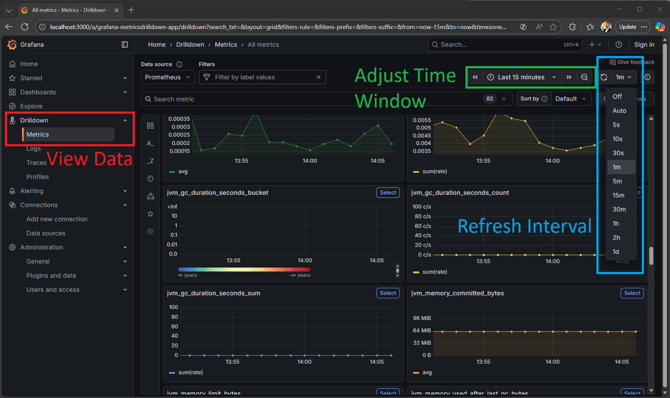
Data can be viewed in graph form by selecting Drilldown > Metrics on the left-side menu.
In the top-right interface, a timeframe for the window can be set, along with an auto-refresh interval that is 'off' by default.
Individual graphs are labeled with their metrics. These titles also describe the origin of the data based on the beginning of each title:
- highbyte_hub_ - Collected from the HighByte Intelligence Hub application
- http_server_ - Grafana GUI server
- jvm_ - Underlying JVM running HighByte Intelligence Hub
- otel_ - OpenTelemetry processes
Drilldown Metrics
Grafana displays the top-level metrics of all systems as aggregates - e.g. all pipeline execution times are displayed as an average. However, metrics are collected for each instance of HighByte Intelligence Hub pointed to this OTel collector separately, as is each pipeline, connection, etc. By navigating into each of these metrics, finer metrics can be acquired through the drilldown features.
To drill down to a specific topic, find the top-level descriptive metric to be investigated, and press the "select" button on the chart. For instance, to inspect pipeline execution times, select the "highbyte_hub_pipeline_stats_execution_duration_seconds_sum" metric.
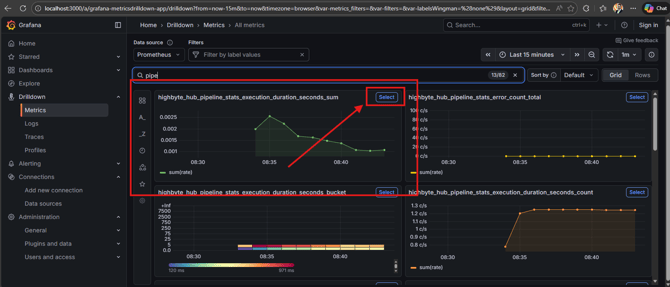
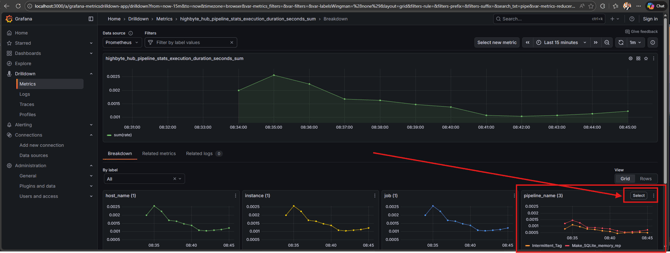
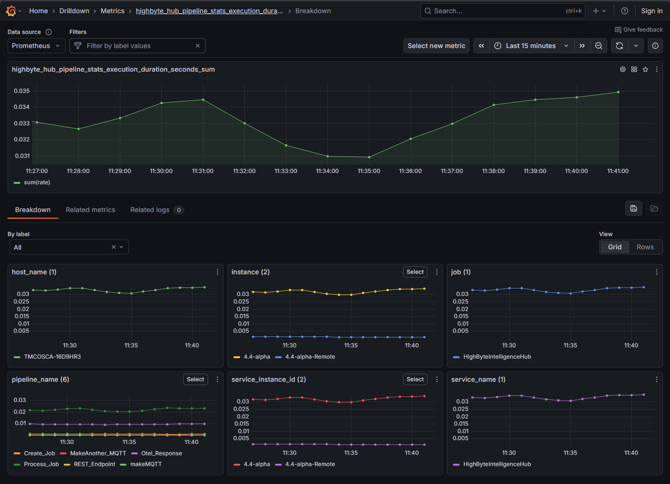
This will bring up the next level where pipeline duration could be inspected by host, service, or specific pipeline. The pictured example demonstrates an OTel collector connected to a single host. This Intelligence Hub has many pipelines, but only three are running, so OTel only displays data for the running pipelines in the display window. Selecting the further metric allows viewing of each pipeline's execution times independently.
Capturing Multiple Intelligence Hubs
One instance of grafana/otel-lgtm can host OTel data for multiple Intelligence Hub runtimes, and even other applications. These instances are all started with the common OTel endpoint. In addition to top-level metrics, these different applications and instances can populate topics that can be drilled down through to provide a finer view of performance. For instance, the metric highbyte_hub_pipeline_stats_execution_duration_seconds_sum shows an aggregate for all connected pipelines, but in the drilldown, individual pipelines can be observed, along with aggregates per Intelligence Hub.
Drilldown Aggregates
The available labels that can be expected are different depending on the metric, but for this example and other similar metrics that may be encountered, they are:
- host_name - the name of the host / virtual machine / computer that is running the application
- pipeline_name - the specific named pipeline running
- service_instance_id - the specific instance of Intelligence Hub or other application (see Resource attributes above for its default and how to override it)
- instance - a replica of service_instance_id created by Prometheus
- service_name - the name of the application supplying the OTel data
- job - a replica of service_name created by Prometheus
Most of these labels are properly set automatically and not valuable to change, aside from service_instance_id — see Resource attributes above. In the above image, two Intelligence Hubs are configured for Central Config, and are therefore labeled "4.4-alpha" for the central node, and "4.4-alpha-remote" for the remote node.
Other related material